How to Back Up Your Files Properly (The 3-2-1 Rule)
A practical backup guide: the 3-2-1 rule explained, backup vs sync, and how to set up File History, Time Machine and cloud storage step by step.
By Taqnio TeamPublished Updated 9 min read
In this article
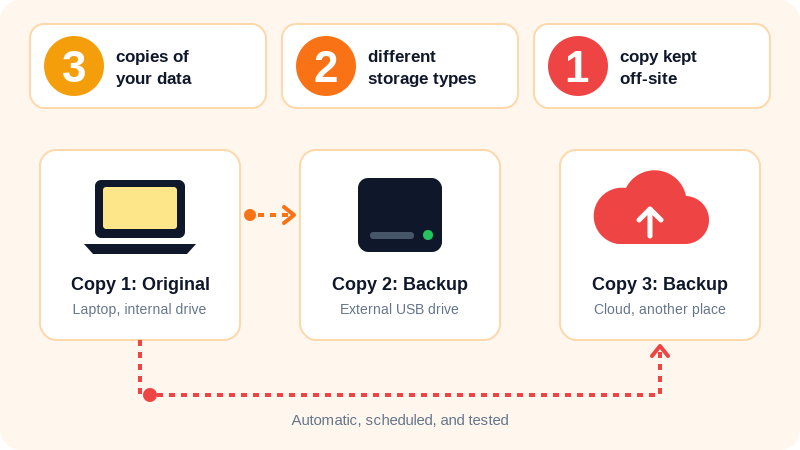
A proper backup follows the 3-2-1 rule: keep three copies of your data, on two different types of storage, with at least one copy off-site, such as in the cloud. In practice that means your original files on your computer, one copy on an external drive, and one copy in the cloud, all running automatically.
Bottom line: turn on File History (Windows) or Time Machine (Mac) with an external drive, add a cloud copy, and test restoring a file every so often to make sure it all works.
What is the 3-2-1 rule?
It's a simple rule that professionals have used for years because it covers most of the ways data gets lost:
- 3 copies: the original you work on, plus two backups.
- 2 different storage types: for example your laptop's internal drive and an external USB drive. If one type fails, the other survives.
- 1 copy off-site: in the cloud or at another address. This protects you from theft, fire and water damage, which hit every device in the same place at once.
The idea is that losing your data should take several disasters at the same time, not just one failed drive. This is the same guideline that CISA (the US cybersecurity agency) gives businesses: three copies, two types of media, one copy off-site. The UK's NCSC adds that 3-2-1 doesn't require any copy to be offline, so it recommends keeping at least one backup disconnected as well.
Backup vs sync: they're not the same
Many people think Google Drive, OneDrive or Dropbox is a backup. At heart, they are sync services:
- Sync keeps the same file identical across all your devices. Delete or corrupt it on one device and it's deleted or corrupted everywhere.
- Backup keeps a separate copy, usually with older versions, so you can go back to last week's file.
The big sync services do offer a recycle bin and version history, but only for a limited time that depends on the service and your plan. Treat them as one part of your plan, not the whole thing.
What should you back up?
Focus on what you can't replace. Apps can be reinstalled; your photos and documents can't:
- Your Documents, Desktop, Pictures and Videos folders.
- Work, study and project files.
- Browser bookmarks and settings: the easiest way to keep them is to sign in to your browser account and turn on sync, so they come back on any new computer.
- Email in services like Gmail and Outlook already lives on the provider's servers, but save important attachments you rely on to a folder on your computer so they end up in your backup too.
- If you write code, push your projects to GitHub as well. Our Git and GitHub step-by-step guide shows you how.
- Backup codes for two-factor authentication. Store them somewhere safe and separate; they're how you get back into your account if you lose your phone. See our guide to two-factor authentication.
Don't keep your passwords in a plain text file inside your backup. Use a password manager instead, which stores them encrypted and synced.
The local copy: an external drive
Start by picking the right drive. An external HDD is cheaper per terabyte and perfectly fine for backups, while an external SSD is faster, lighter and better at surviving a drop, but costs more. Choose a capacity clearly larger than your current files, because backup tools keep older versions and need room for them. Ideally, use the drive only for backups, not for carrying files around every day.
On Windows: File History
File History is built into Windows. It keeps copies of your main folders, such as Documents, Pictures and Desktop, and saves older versions of every file. (Microsoft's own page, linked in the Sources section, notes that Windows 10 support ended on October 14, 2025 and recommends Windows 11.)
- Plug in your external drive.
- Open Control Panel, go to System and Security, and select "Save backup copies of your files with File History".
- Click Turn on. If Windows picked the wrong drive, use Select drive to choose another.
- In the advanced settings you can choose how often it saves copies and how long to keep old versions.
To get a file back later, open File History and choose Restore personal files, then move between dates until you find the version you want.
On Mac: Time Machine
- Plug in your external drive.
- Open System Settings, then General, then Time Machine.
- Add the drive as a backup disk and turn on the option to encrypt backups.
According to Apple's guide, Apple recommends a drive with roughly double your Mac's storage, used only for backups. Time Machine keeps hourly backups for the past 24 hours, daily backups for the past month, and weekly backups for older months, and it deletes the oldest ones when the drive fills up. The setting is called Encrypt Backup, and you will need its password to restore files. To start a backup manually, choose Back Up Now from the Time Machine menu bar icon, and eject the drive (or shut down the Mac) before you unplug it.
The off-site copy: cloud storage
The cloud is the easiest way to get your "one copy off-site". If you want to understand the idea itself, read what cloud computing is. Free storage, as stated on the official pages on 2026-11-20:
| Service | Free storage | Deleted files and old versions | Note |
|---|---|---|---|
| Google Drive | Up to 15 GB (source) | Trash is emptied after 30 days (source) | Shared with Gmail and Google Photos |
| OneDrive | 5 GB (source) | Recycle bin keeps deleted items 30 days on personal accounts (source) | Used by Windows Backup |
| iCloud | 5 GB (source) | Check Apple's pages | Built into iPhone and Mac |
| Dropbox Basic | 2 GB, up to 3 devices (source) | Roll back to versions saved in the past 30 days | Fine for small files |
Paid plans exist if your files don't fit. For example, Apple's page lists iCloud+ at $0.99 per month for 50 GB in the US, but prices vary by country, so check the current price on each service's website.
- Windows Backup (Windows 11) backs up your Desktop, Documents, Pictures, Videos and Music folders, plus settings and some app information, to your Microsoft account through OneDrive. Open it from the Start menu or from Settings > Accounts > Windows backup. Because OneDrive's free space is only 5 GB, a large Pictures folder will not fit without a paid plan.
- On iPhone, turn on iCloud Backup. Apple says it backs up automatically each day when the device is on power and Wi-Fi with the screen locked. On Android, turn on backup to your Google account in Settings.
Protect your backups
Your backup holds your whole digital life, so guard it well:
- Turn on two-factor authentication for your cloud account. Anyone who gets in can see all your files.
- Encrypt your external drive where you can: Time Machine has a built-in Encrypt Backup option. On Windows, Microsoft says BitLocker is available on Windows Pro, Enterprise and Education, while Device encryption (Settings > Privacy & security > Device encryption) is available on more devices, including Windows Home. Keep your recovery key safe, and remember that without the password or key an encrypted backup can't be restored.
- Unplug the drive after backing up: CISA's ransomware guide says many ransomware variants try to find and delete or encrypt accessible backups, and it recommends offline, encrypted backups that you test regularly. The disconnected copy is the one that saves you.
- Don't always keep the drive next to your laptop: if your bag gets stolen with both inside, you've lost both copies.
Test your restores and stick to a schedule
A backup you've never restored from might not work when you need it. About once a month:
- Pick a random file and restore it from File History, Time Machine or the cloud.
- Open it and check it's intact.
- Look at the date of the latest backup. If it's old, something has stopped working and needs fixing.
CISA's backup guidance also asks for scheduled recovery tests, including the ability to go back to a point a week or more earlier, so check that your tool keeps older versions and not just the latest copy.
Common mistakes and how to avoid them
- Treating sync as backup. Deleted or damaged files sync everywhere. Cloud trash only keeps items for a limited time (30 days on Google Drive and personal OneDrive), so a mistake you notice late can't be undone.
- Leaving the backup drive plugged in all the time. CISA and the NCSC both describe backups being encrypted or deleted by ransomware when they are reachable. Keep at least one copy disconnected.
- Buying a drive with no spare room. Apple recommends about double your Mac's storage, because old versions need space too.
- Unplugging a Time Machine drive carelessly. Apple says to eject it or shut down the Mac first.
- Losing the encryption password or recovery key. An encrypted backup without its password can't be restored.
- Filling the free cloud plan without noticing. Google's 15 GB is shared with Gmail and Photos, and OneDrive's 5 GB is small for a photo library. Check the storage page for each account.
- Never testing a restore. Do it monthly, as above.
What to check before you choose a backup tool
- Does it keep older versions, and for how long?
- Is it automatic, or do you have to remember?
- Can you encrypt it, and where is the key stored?
- Is the free space enough for your files, including old versions?
- Can you restore on a new computer without the old one?
A starter plan you can follow today
- Today: turn on cloud sync for your Documents and Pictures folders.
- This week: buy an external drive and set up File History or Time Machine.
- Every month: test restoring one file.
- Before any big change, such as resetting Windows or swapping your drive, take a full backup and check it. If you're doing that to make your computer faster, read how to speed up a slow laptop first.
Sources
All pages were checked on 2026-11-20.
- CISA: Back Up Business Data (3-2-1 guidance)
- CISA: Ransomware Guide
- NCSC: Offline backups in an online world
- Microsoft: Backup and Restore with File History
- Microsoft: Back up your Windows PC (Windows Backup)
- Microsoft: Restore deleted files in OneDrive
- Microsoft: Device encryption and BitLocker
- Apple: Back up your Mac with Time Machine
- Apple: iCloud
- Apple: Back up iPhone or iPad with iCloud
- Google: Drive storage
- Google: Drive trash
- Dropbox Basic
Frequently asked questions
Is Google Drive or OneDrive enough as a backup?
It's a good off-site copy, but it isn't enough on its own. Sync services copy deletions and changes to all your devices, so add a second copy on an external drive to follow the 3-2-1 rule.
How often should I back up?
Make it automatic wherever you can. Time Machine backs up hourly while the drive is connected, and File History lets you set how often it saves copies in its advanced settings. If you plug in a drive manually, once a week is a sensible minimum for files that change often.
Should I buy an HDD or an SSD for backups?
An external HDD is cheaper per terabyte and fine for large backups. An SSD is faster, lighter and handles knocks better, but costs more. For most people, an external HDD around twice the size of their files is plenty.
Will a backup protect me from ransomware?
Yes, as long as one copy isn't connected to your computer when the attack happens, because ransomware can encrypt any drive that's plugged in. Disconnect your external drive after each backup and use services that keep previous file versions.
Related tutorials

Tools & productivity
Canva for Beginners: How to Design Posts, Slides and More with No Experience
A practical Canva guide for beginners: sign-up, templates, editing text and images, brand basics, Arabic and RTL tips, AI tools, exporting and sharing.
· 7 min read
Tools & productivity
What Is Nafath and How to Use It Safely: Saudi Arabia's National Single Sign-On
A simple guide to Nafath, Saudi Arabia's National Single Sign-On: how the app works, how number matching approves a login, and how to avoid Nafath scams.
· 7 min read
Tools & productivity
Digital Payments in Saudi Arabia: mada, Apple Pay, STC Bank and Instant Transfers
A practical guide to paying digitally in Saudi Arabia: mada cards, Apple Pay and mada Pay, STC Bank, sarie instant transfers and key security habits.
· 6 min read