Canva for Beginners: How to Design Posts, Slides and More with No Experience
A practical Canva guide for beginners: sign-up, templates, editing text and images, brand basics, Arabic and RTL tips, AI tools, exporting and sharing.
Published 7 min read
In this article
Canva is an online design tool that lets you make social media posts, presentations, CVs, logos and short videos from ready-made templates using drag and drop, with no design experience needed. It runs in your browser and on your phone, has a free plan, and exports to formats such as PNG, PDF and MP4.
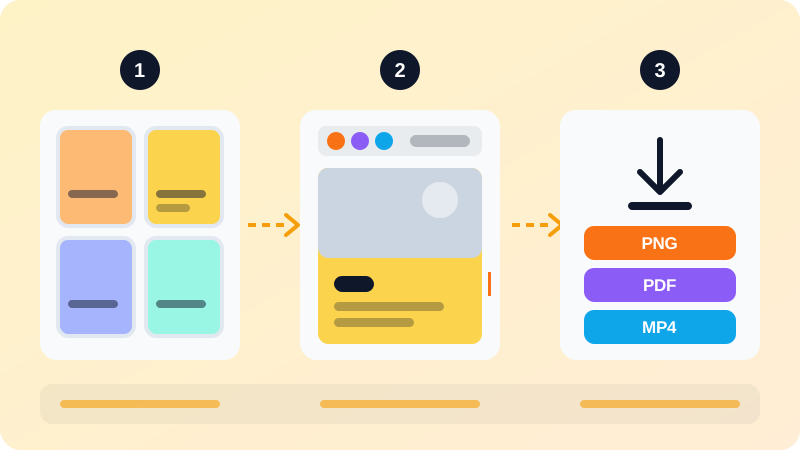
In short: sign up for free, pick a template close to what you need, swap the text, images and colours, keep your brand colours and fonts consistent, then download in the right format or share a link with your team.
What is Canva and what can you make with it?
Canva's big idea is that you don't start from a blank page in a complicated program. You start from a template a professional designer made, then make it yours. That suits small business owners, content creators, students and anyone who needs a decent design quickly.
Things you can make:
- Social posts and stories for Instagram, X and LinkedIn.
- YouTube thumbnails, which matter a lot if you plan to start a YouTube channel.
- Presentations for school and work.
- CVs, business cards and invitations.
- Digital products such as templates and e-books, a good fit if you want to sell digital products.
- Short videos with text, music and transitions.
When isn't Canva enough? For complex print work with very precise specifications, or illustration from scratch, professional design software is the better choice. For most everyday design jobs, Canva is faster and simpler.
Create an account and your first design
- Go to
canva.comand sign up for free with your email or an existing account such as Google or Apple. - If you prefer, change the interface language in your account settings.
- On the home page, search for the kind of design you want, for example "Instagram post" or "Presentation". The size is set for you.
- Pick a template from the side panel, or start with a blank design.
- Canva saves automatically. You'll find your work later under Projects.
Tip: when searching templates, combine the topic with a colour or style, such as "coffee shop menu green", to get closer matches faster.
Editing text, images and elements
Text
Double-click any text to edit it. The toolbar at the top changes the font, size, colour, alignment and spacing. To add new text, open the Text panel on the left and choose a heading, body text or a ready-made font combination.
Images
- Drag an image from Canva's library, or upload your own photos.
- To replace a photo in a template, drag the new one straight onto it.
- Double-click a photo to crop it or reposition it inside its frame.
- Use the edit options to adjust brightness and contrast or add a filter.
Elements and layers
The Elements panel has shapes, icons, lines, graphics and frames. A few tools you'll use constantly:
| Tool | What it does |
|---|---|
| Group | Moves several elements as one |
| Position (layers) | Puts an element in front of or behind another |
| Align | Centres or lines up elements precisely |
| Lock | Stops an element moving by accident |
| Transparency | Makes an element see-through |
Made a mistake? Ctrl + Z on Windows or Cmd + Z on Mac undoes it.
Brand basics: consistent colours and fonts
Professional designs look polished mostly because they reuse the same colours and fonts every time. Even without a designer, follow these rules:
- Two or three colours: a main colour, an accent and a neutral for text.
- Two fonts at most: one for headings, one for body text.
- One logo in a light and a dark version.
Canva's Brand Kit keeps your logo, colours and fonts in one place so you can apply them in a click. The full version comes with paid and team plans. On the free plan, keep your colour codes (like #1E40AF) in a note and paste them into the colour picker each time.
Tip: once you've made a post you're happy with, duplicate it as the starting point for future posts and just change the content.
Arabic text and right-to-left tips
Canva supports Arabic, and these habits will save you from the most common problems:
- Pick a font that supports Arabic. Not every font includes Arabic letters. If letters look disconnected or odd, change the font.
- Right-align the text from the alignment options.
- Keep Arabic and English in separate text boxes where possible. Mixed sentences can reorder words and numbers unexpectedly.
- Check punctuation and numbers after typing, especially at the start and end of a line.
- Mirror the layout: English templates usually put the heading and logo on the left. Move them to the right so the design follows the reading direction.
If you have an English design and need an Arabic version, Canva's Translate feature translates the text on a page, and its settings include an option to mirror the page to match the text direction for right-to-left languages. Always proofread machine translation before you publish.
Canva's AI features at a glance
Canva has added a set of AI-powered tools. Their names and usage limits change often, but they cover:
- Writing: suggesting headlines, captions and paragraphs.
- Generating images and designs from a text description.
- Photo editing: removing a background or changing part of an image.
- Translating and resizing one design for several languages and platforms.
The free plan includes limited use of some of these tools; paid plans raise the limits and add more of them. To compare Canva with dedicated tools, see our list of the best free AI image generators.
Exporting, sharing and collaboration
Choosing a download format
Click Share, then Download, and pick a format:
| Format | Best for |
|---|---|
| PNG | Graphics and text; supports transparency |
| JPG | Photos, with a smaller file size |
| SVG | Web graphics that stay sharp at any size |
| PDF Standard | Documents shared digitally |
| PDF Print | Printing, with higher resolution, bleed and crop marks |
| MP4 | Videos and designs with sound |
| GIF | Short animations |
| PPTX | Presentations you want to open in PowerPoint |
Some options, such as transparent backgrounds, compression and file-size limits, are for paid plans. One gotcha: if you export a PDF containing cropped images, the file can include the full original image, so delete anything you don't want people to see.
Sharing and teamwork
From Share you can invite people by email or create a link and choose what it allows: Can view, Can comment or Can edit. Teammates can leave comments on any element and mention each other. You can change permissions at any time, and it's wise never to put an edit link anywhere public.
Free vs Pro, and copyright basics
What paid plans add
The free plan is enough to get started and for personal use. Paid plans typically add a much larger library of premium templates, photos and elements, the full Brand Kit, tools such as background removal and resizing, and higher AI limits. Prices vary by country and change, so check the official pricing page, and get comfortable with the free plan before you pay.
What you're allowed to do with templates and elements
When you download a design containing Canva library content, you agree to Canva's Content License Agreement. The essentials:
- Allowed: using Free and Pro content in personal and commercial designs, such as posts for your business.
- Allowed with conditions: selling original designs such as posters, templates and e-books. Templates that include Pro content can only be sold as Canva template links, not as PDFs or other files.
- Not allowed: selling a library photo or element as-is or with minimal changes, or selling clipart files made from Canva content.
- Logos: library content (other than fonts) can't be used as part of a trademark.
If you design for a client, transfer the finished design to that one client only. When in doubt, read the official licensing page.
Official sources: Canva Help: download file types · Canva Help: designing products for sale · Content License Agreement
Frequently asked questions
Is Canva really free?
Yes. The free plan gives you a large library of templates and elements and lets you download in common formats. Paid plans add Pro templates and content, extra tools and a bigger allowance for AI features. Prices and features change, so check Canva's official pricing page.
Can I sell designs I make in Canva?
You can sell original designs you've put creative effort into, such as posters, templates or e-books, under the terms of Canva's Content License Agreement. You can't sell a library element on its own, and templates containing Pro content have special conditions, so read the official licensing page first.
Why does my Arabic text look disconnected in Canva?
Usually because the font you picked doesn't support Arabic letters. Choose an Arabic font from the font library and right-align the text. If you pasted the text from another app, try pasting it as plain text.
Can I design my business logo in Canva and trademark it?
You can design a logo, but Canva's Content License Agreement doesn't allow library content (other than fonts) to be used as part of a trademark. If you plan to register the logo, build it from simple shapes and text or from your own artwork.
Does Canva work on my phone?
Yes. Canva runs in the browser and has desktop and mobile apps. Your designs live in your account, so you can start on a computer and finish on your phone.
Related tutorials
Tools & productivity
What Is Nafath and How to Use It Safely: Saudi Arabia's National Single Sign-On
A simple guide to Nafath, Saudi Arabia's National Single Sign-On: how the app works, how number matching approves a login, and how to avoid Nafath scams.
· 7 min read
Tools & productivity
Digital Payments in Saudi Arabia: mada, Apple Pay, STC Bank and Instant Transfers
A practical guide to paying digitally in Saudi Arabia: mada cards, Apple Pay and mada Pay, STC Bank, sarie instant transfers and key security habits.
· 6 min read
Tools & productivity
How to Protect Yourself from WhatsApp and SMS Scams in Saudi Arabia and the Gulf
The most common WhatsApp and SMS scams in the Gulf, from fake parcel fees to bank, Absher and Nafath impersonation, and how to spot, block and report them.
· 7 min read