The Best Free AI Image Generators
The best free AI tools for creating images from text, how their free limits compare, tips for writing a good image prompt, and what to know about rights.
Published 6 min read
In this article
You can create striking images from a text description at no cost using tools like Bing Image Creator, ChatGPT, Gemini and Adobe Firefly. Every free tool has a daily or monthly limit, so it pays to know a few of them and switch between them as needed.
In short: for quick results try ChatGPT, Gemini or Bing Image Creator; for commercial work check Adobe Firefly's terms; for images with text in them try Ideogram. Always read the usage terms before publishing.
How image generators work
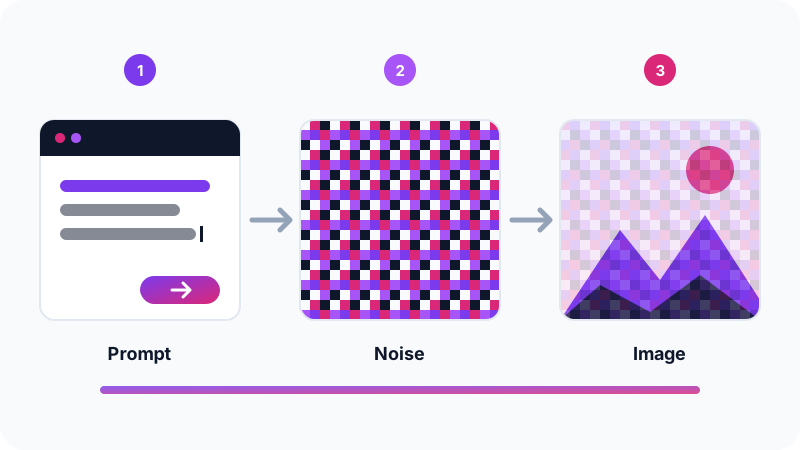
You describe the image you want, and the model turns that description into a picture. Many of these models start from random "noise", like static on an old TV, and remove it step by step until an image matching your description appears. That means:
- Each time you press generate, you get a different result, even with the same description.
- The more precise your description, the less the model has to guess and the closer the result is to what you pictured.
Quick comparison
| Tool | What you need | Stands out for | Free limit |
|---|---|---|---|
| Bing Image Creator | Microsoft account | Very easy, uses OpenAI models | A limited number of fast generations, then slower |
| ChatGPT | OpenAI account | Editing images through chat | Limited on the free plan |
| Gemini | Google account | Fast, part of Google's services | Limited on the free plan |
| Adobe Firefly | Adobe account | Aimed at commercial use | Limited monthly credits |
| Ideogram | An account | Good at text inside images | A limited number of generations |
| Canva | Canva account | Generate straight into your design | A limited number of uses |
Free limits change often, so treat this table as a general guide and check each tool's own page.
The best free tools in detail
Bing Image Creator from Microsoft
A free Microsoft tool built on OpenAI's image models. Sign in with a Microsoft account, type a description and you get several images. It's an excellent starting point if you want a quick, no-fuss try.
ChatGPT
ChatGPT's free plan lets you create a limited number of images. Its big advantage is editing by conversation: "make the background night-time" or "change the shirt to blue". If you're new to it, start with our ChatGPT beginner's guide.
Gemini from Google
You can ask for an image directly in a Gemini chat. It suits people who already use Google's services, and Google adds an invisible watermark to generated images to mark them as AI-made.
Adobe Firefly
From Adobe, the company behind Photoshop. Adobe says Firefly was trained on licensed and public-domain content and markets it as suitable for commercial use. The free plan gives you a limited monthly credit allowance.
Ideogram
If you need an image with a word or a text logo in it, Ideogram is known for rendering English text inside images better than many other tools. Other scripts, such as Arabic, are still hard for most generators.
Canva
If you're designing a post or a presentation in Canva, you can generate an AI image inside the design itself without switching tools, with a limited number of uses on the free plan.
Running a model on your own computer
Open models such as Stable Diffusion can run on your own computer for free and without usage caps, as long as you have a suitable graphics card. We explain the general idea in how to run an AI model on your own computer.
Which tool fits your goal?
| Your goal | Start with | Why |
|---|---|---|
| A quick image for a post or slide | ChatGPT, Gemini or Bing Image Creator | Easy, no settings needed |
| A full design with text and a logo | Canva | Generate the image, then add your own text in the same place |
| An image for a commercial project | Adobe Firefly | Aimed at commercial use; still read the terms |
| An image with a clear English word in it | Ideogram | Better at drawing letters |
| Lots of images with no caps | A model on your own computer | No daily limits, but needs a strong machine |
A practical tip: save any description that gave you a result you liked. If you run out of credits in one tool, try the same description in another and compare; each model has its own take on colour and detail.
How to write a good image description
A good description answers these questions:
- What? The main subject: "an orange cat sitting on a window ledge".
- Where? The setting and background: "in an old city apartment, rain outside".
- What style? "Realistic photo", "watercolour painting" or "3D render".
- Lighting and colour: "warm evening light, muted colours".
- Shape: square for Instagram, or wide for a YouTube thumbnail.
An orange cat sitting on a window ledge in an old apartment, rain on the
glass behind it, realistic photo, warm evening light, muted colours, wide
For more techniques that apply to both text and images, read how to write good prompts.
Usage rights and commercial use
Before using an image in an ad, a product or a commercial website:
- Read the tool's terms: some tools grant broader rights to paid subscribers than to free users.
- Copyright isn't guaranteed: in some countries, including the United States, images generated entirely by AI generally aren't protected by copyright, which means others may be able to use them too.
- Trademarks and protected works: don't ask for other companies' logos or cartoon characters owned by someone else.
- Watermarks and metadata: some tools add a visible or hidden marker showing the image is AI-generated. Don't try to strip it.
Tips and common mistakes
- Generate several versions: pick the best rather than sticking with the first attempt.
- Change one thing at a time: so you know which word changed the result.
- Check the details: hands, fingers and small text are where models most often go wrong.
- Add text yourself: use a design tool after generating the image.
- Don't mislead: never post a generated image as a real photo of an event or a person.
- Check the resolution: some tools produce images that look fine on screen but aren't sharp enough for large prints.
- Avoid unknown sites: stick to well-known official tools, and skip sites that ask you to install unfamiliar software or enter card details for a "free trial".
Finally, these tools change fast, and today's best option may be different in a few months. Learning to describe an image well matters more than sticking to one tool.
Frequently asked questions
Do I own the images I create with AI?
It depends on the tool's terms and the law where you live. Most tools let you use the images, but some free plans add restrictions, and in some countries images generated entirely by AI are not protected by copyright.
Why does text inside AI images often look garbled?
Many models still struggle to draw letters, especially in non-Latin scripts. If your design needs text, generate the image without it and add the words yourself in a design tool such as Canva.
Do I need a powerful computer for these tools?
No. Browser-based tools do the work on their own servers, so any internet-connected device is enough. You only need a strong computer with a good graphics card if you want to run a model locally.
Can I generate images of real people?
Most tools restrict realistic images of real people, especially public figures. Even where a tool allows it, don't create images that could mislead people or harm someone.
Related tutorials
AI tools
How to Use AI to Write and Improve Your CV (Step by Step)
A practical way to use ChatGPT, Claude and Gemini to write your CV, tailor it to a job ad and pass ATS filters, with ready-to-use prompts and mistakes to avoid.
· 6 min read

AI tools
ChatGPT for Beginners: Everything You Need to Know to Get Started
A plain guide to ChatGPT: what it is, how to sign up and start your first chat, free vs paid plans, and how to use it safely and get better answers.
· 6 min read
AI tools
ChatGPT vs Claude vs Gemini: Which One Fits Your Work?
A practical comparison of ChatGPT, Claude and Gemini: what each does best, free and paid plans, and which one to pick for study, writing or coding.
· 6 min read