How to Run an AI Model on Your Own Computer Offline (Ollama and LM Studio)
Run open AI models on your own computer without the internet using Ollama or LM Studio: hardware needs, setup, your first chat, and how to pick a model.
Published 5 min read
In this article
Yes, you can run an AI model on your own computer and chat with it offline, using free apps such as Ollama or LM Studio. You install the app, download an open model once, and from then on every conversation runs on your machine without sending your data to a server.
In short: make sure you have at least 8 GB of RAM (16 GB is better), install Ollama from its official site, type ollama run followed by a small model's name, and start chatting. Prefer a graphical app? Use LM Studio.
Why run AI locally?
Cloud tools like ChatGPT are easy and powerful, but running a model locally has real advantages:
- Privacy: your text and files never leave your computer, which matters for sensitive documents.
- Works offline: handy when travelling or on a weak connection.
- No subscription: the apps and open models are free. Your only costs are your hardware and electricity.
- Learning: you get a feel for how language models work and can connect them to your own programs through a local API.
The trade-off: local models are smaller than the big cloud models, so they're usually weaker on complex tasks, and their speed depends on your hardware.
What hardware do you need?
The most important factor is memory: system RAM, or video memory (VRAM) if you have a dedicated GPU. Models are described by their number of parameters, such as 3B or 8B (3 or 8 billion). More parameters generally means more capability and more memory.
| Model size | Rough memory needed | Good for |
|---|---|---|
| 1B to 4B | 8 GB | Everyday laptops, simple tasks |
| 7B to 9B | 16 GB | Most day-to-day use |
| 12B to 14B | 16 to 32 GB | Better answers on a strong machine |
| Larger | 32 GB or more, ideally a strong GPU | Advanced users |
These are rough figures for quantized (compressed) models, which is what these apps usually download by default. Macs with Apple Silicon do well here because the CPU and GPU share the same memory. You'll also need free disk space: a single model is typically anywhere from 1 GB to 10 GB or more.
Option 1: Ollama from the command line
Ollama is free, open-source software for Windows, macOS and Linux that lets you run a model with a single command.
- Go to the official site, ollama.com, download the installer for your system and install it.
- Open a terminal (Terminal on macOS and Linux, PowerShell on Windows).
- Check the install:
ollama --version
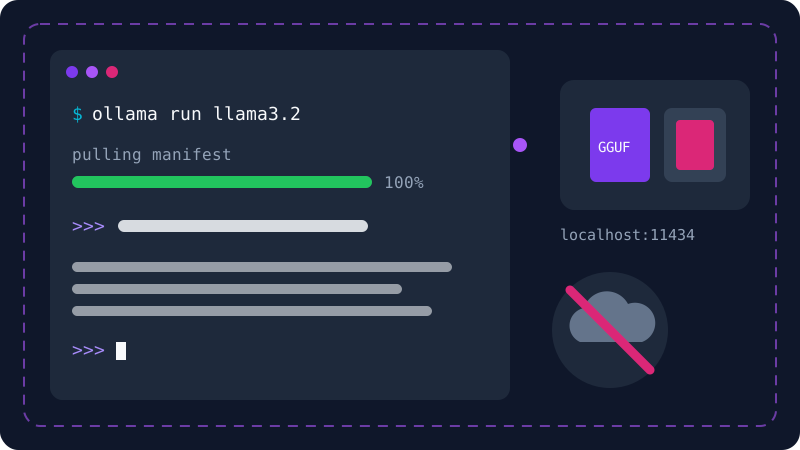
- Run a small model. The first time, Ollama downloads it automatically and then opens a chat:
ollama run llama3.2
- Type your question after the
>>>prompt. Type/byeto leave the chat.
Useful Ollama commands
ollama pull llama3.2   # download a model without starting it
ollama list            # show installed models
ollama ps              # show models currently running
ollama rm llama3.2     # delete a model to free up space
Model names change as new models are released, so browse the model library on the Ollama website and copy the name from there.
Ask a quick question without opening a chat
You can put your question straight after the model name. Ollama prints the answer and returns you to the terminal:
ollama run llama3.2 "Explain what RAM is in two sentences"
This is handy when you want one quick answer, or want to use the model inside a simple script.
The local API
Ollama also serves a local API at http://localhost:11434, which you can call from your own apps. A simple example with curl on macOS or Linux:
curl http://localhost:11434/api/generate -d '{"model": "llama3.2", "prompt": "Why is the sky blue?"}'
The request never leaves your computer, because localhost means the machine itself. If APIs are new to you, read what is an API.
Option 2: LM Studio with a graphical interface
If you'd rather avoid the command line, LM Studio is a great choice. It's a desktop app for Windows, macOS and Linux with a chat window similar to ChatGPT.
- Download LM Studio from its official site, lmstudio.ai, and install it.
- Open the model search inside the app and type a model family such as Llama, Gemma or Qwen.
- The app lists the available versions and often indicates whether they'll fit in your machine's memory. Pick a small one to start.
- Once it's downloaded, load the model from the top of the chat window and start typing.
Open-source alternatives such as Jan work in a similar way.
Which model should you pick?
Several companies publish open model families, including:
- Llama from Meta.
- Gemma from Google.
- Qwen from Alibaba.
- Mistral from Mistral AI.
- Phi from Microsoft.
- DeepSeek.
Each family keeps releasing new versions and sizes. A simple rule: start with the smallest recent version from a well-known family, test it on questions from your real work, and if the answers are weak and your machine can handle it, move up a size. If you need a language other than English, test that first, because language support varies a lot between models.
Tips for better performance
- Close heavy apps, like a browser with dozens of tabs, to free memory while the model runs.
- Start small. A fast small model beats a big one that types a word per second.
- Write clear prompts. Small models need more precise instructions than big ones. See how to write good prompts.
- Remove models you don't use to save disk space.
- Download only from official sources: the app's own site and its built-in model library. Avoid model files from unknown websites.
When is running locally the right choice?
Go local if privacy is a priority, you often work offline, or you want to learn and connect models to your own code. If you need the best possible quality for complex writing or large coding tasks, cloud tools are still ahead; you can compare them in ChatGPT vs Claude vs Gemini. Many people use both: a local model for private, quick tasks and a cloud tool for the hard ones.
Frequently asked questions
Are local models as good as ChatGPT or Claude?
Usually not. Models that fit on a personal computer are much smaller than the big cloud models, so they can struggle with complex tasks. They're still very good for summarising, rewording, general questions, and learning how LLMs work.
Do I need a graphics card (GPU) to run a local model?
No. Small models run on a normal CPU and RAM, just more slowly. A GPU with plenty of video memory, or a Mac with Apple Silicon, makes responses much faster.
Does Ollama send my chats to the internet?
You only need the internet to download the app and the model the first time. After that, processing happens on your machine, and you can disconnect and keep chatting.
Can I use local models in a commercial product?
It depends on each model's licence. Some allow commercial use with conditions and some are more restrictive, so read the licence on the model's official page before building a product on it.
Related tutorials
AI tools
How to Use AI to Write and Improve Your CV (Step by Step)
A practical way to use ChatGPT, Claude and Gemini to write your CV, tailor it to a job ad and pass ATS filters, with ready-to-use prompts and mistakes to avoid.
· 6 min read

AI tools
ChatGPT for Beginners: Everything You Need to Know to Get Started
A plain guide to ChatGPT: what it is, how to sign up and start your first chat, free vs paid plans, and how to use it safely and get better answers.
· 6 min read
AI tools
ChatGPT vs Claude vs Gemini: Which One Fits Your Work?
A practical comparison of ChatGPT, Claude and Gemini: what each does best, free and paid plans, and which one to pick for study, writing or coding.
· 6 min read