What Is Nafath and How to Use It Safely: Saudi Arabia's National Single Sign-On
A simple guide to Nafath, Saudi Arabia's National Single Sign-On: how the app works, how number matching approves a login, and how to avoid Nafath scams.
Published 7 min read
In this article
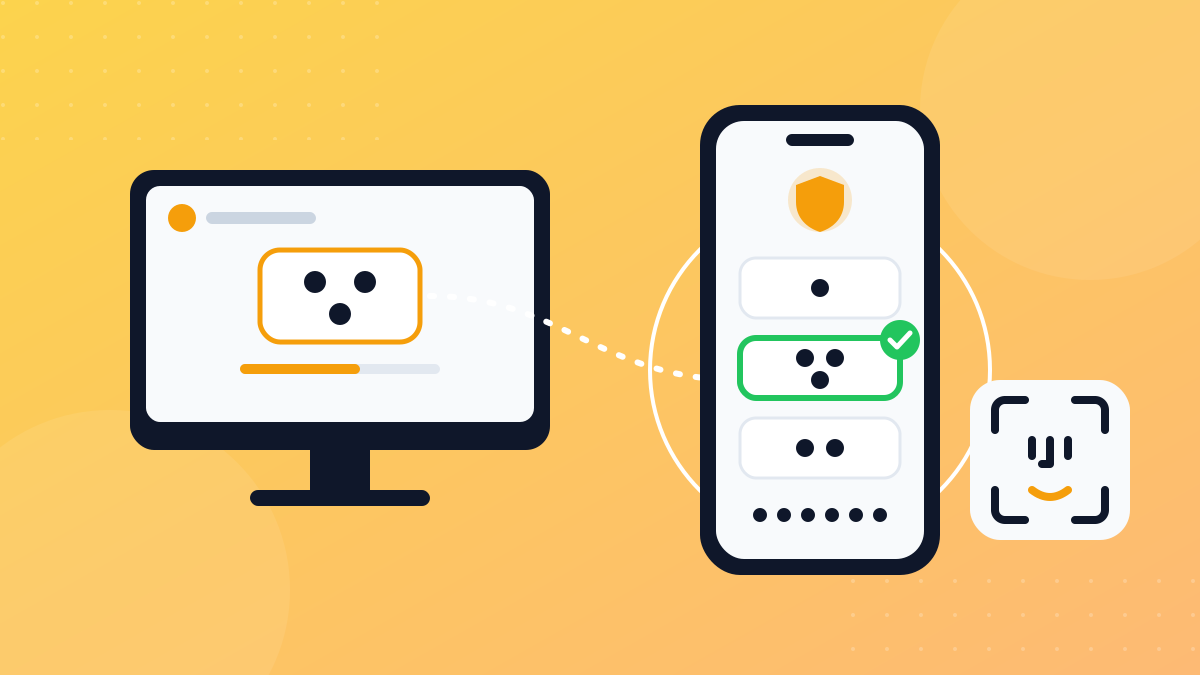
Nafath, officially the National Single Sign-On (النفاذ الوطني الموحد), is a Saudi national platform that lets you sign in to many government and private platforms with one digital identity instead of a separate account for each. It's developed and operated by the Saudi Data & AI Authority (SDAIA), builds on your Absher account, and uses the Nafath app on your phone to approve sign-in requests.
In short: install the app from the official store, and when you sign in anywhere, match the number on the screen with one of the numbers in the app, then enter your PIN. Most importantly: never approve a request you didn't start, and never give the number or your PIN to anyone.
What Nafath is and who runs it
SDAIA's official user guide describes Nafath as a national platform that lets users sign in to public and private sector platforms securely, using unified electronic identifiers based on international standards. The sign-in page at iam.sa states that development and operation are handled by the Saudi Data & AI Authority, the body the National Information Center belongs to.
The idea is simple: instead of remembering a username and password for every platform, you prove who you are once through Nafath, and the connected platform trusts that check.
- Username: your National ID or Iqama number.
- Password: your Absher account password.
- Mobile number: the one registered in Absher, which receives your verification codes.
So before anything else, make sure your Absher account is active and your registered mobile number is correct and working.
Two ways to sign in with Nafath
The National Single Sign-On user guide describes two methods:
| Method | What you need | When it fits |
|---|---|---|
| Nafath app | Your ID number, the app on your phone, your 6-digit PIN | The fastest and most common option |
| Username and password | Your ID number, Absher password, a one-time code (OTP) sent to your phone | When the app isn't available on your device |
Some platforms or transactions may require approval through the app specifically, especially ones that need face verification.
Getting started with the Nafath app
- Download the Nafath app only from the App Store or Google Play, and check that the publisher is the official one, not a copycat.
- Sign in to the app with your National ID or Iqama number and your Absher password.
- Enter the verification code sent by SMS to the mobile number registered in Absher.
- Create a 6-digit PIN. You'll need it for every approval, so pick something hard to guess and keep it in your head only.
- Follow any extra instructions the app shows, such as setting up face verification if asked.
Button names and screen order may shift a little with updates, so follow the instructions inside the app itself.
How approval and number matching work
This is the key step in Nafath, and it's what protects you from someone else signing in as you:
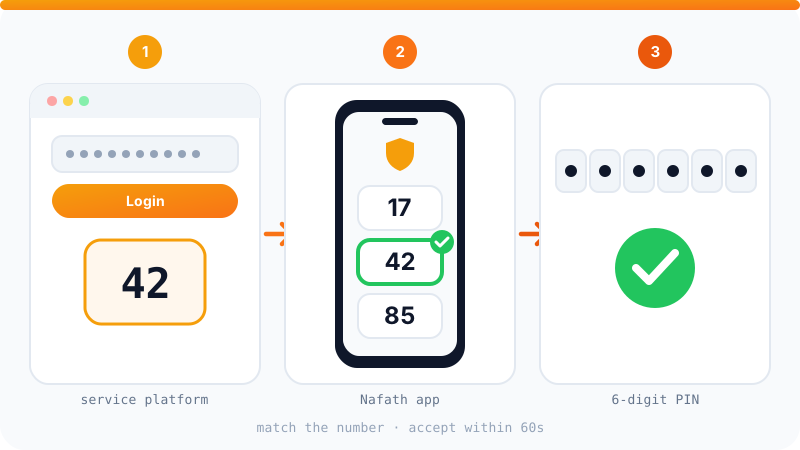
- On the platform you want to use, choose to sign in with Nafath and enter your ID number.
- A request number appears on the platform's screen.
- You get a notification about a request in the Nafath app. Open it, and the Requests screen shows the request with options to accept or reject.
- When you tap Accept, the app shows three numbers. Pick the one that matches the number on the platform.
- Enter your 6-digit PIN.
- If the transaction needs biometric verification, the app asks you to capture your face by following the on-screen instructions.
- A message confirms the request was accepted, and you go back to the platform to carry on.
Details from the official guide
- 60-second limit: you must accept the request within 60 seconds, otherwise you'll see a timeout message and need to send a new request from the platform.
- The wrong number cancels the request: if you pick a number that doesn't match, you get an error and have to start again.
- Wrong PIN: make sure you enter the 6-digit code you created when you first signed in to the app.
Where Nafath is used
Nafath is connected to a large number of government platforms, plus private sector organisations, such as some financial and banking services that use it to verify your identity online. You can tell a platform supports it when its sign-in page offers a National Single Sign-On or Nafath option.
The Nafath platform's own home page also lists links to connected organisations' platforms, so you can reach them from there directly.
Golden rule: Nafath is for signing yourself in to a service you know and opened yourself. If anyone asks you to "verify through Nafath" outside that situation, stop and check.
Check your request history now and then
Both the app and the platform have a Requests History screen that shows previous requests with their status and date. It's a good habit to glance at it from time to time:
- Are all accepted requests from platforms you recognise?
- Are there requests you didn't start, at odd times?
If something looks off, change your Absher password straight away. Requests you didn't start usually mean someone knows your ID number and possibly your password.
Safety rules you should never break
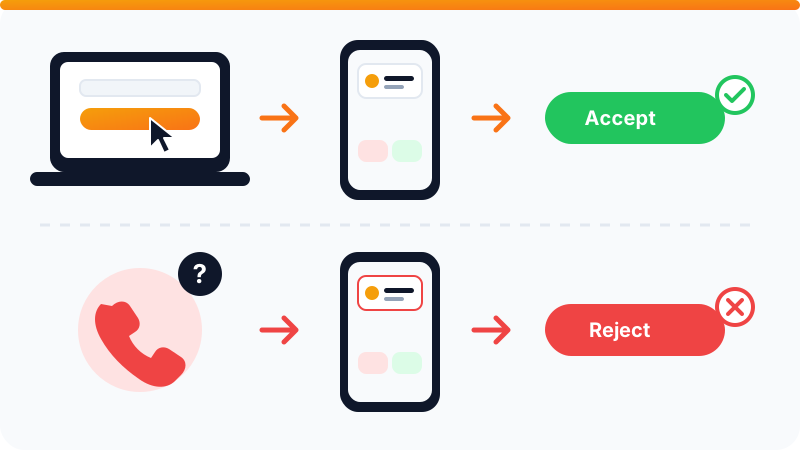
- Never approve a request you didn't start. If a Nafath notification arrives and you weren't signing in to anything, tap Reject immediately.
- Never tell anyone the request number. Matching the number is your job, between your screen and your app. Anyone asking for "the number you see" is trying to sign in as you.
- Never share your PIN, Absher password or verification codes with anyone, even if they claim to work for a government body or a bank.
- Install the app only from the official store, never from a link in a message.
- Go to platforms by typing the address yourself or through their official app, not through links in messages.
Nafath works much like push approvals in two-factor authentication; we cover the general principles in our 2FA guide.
Common Nafath scams
A scammer can't break Nafath technically, so they try to talk you into approving. The most common stories:
- The "update your details" call: someone claiming to be from a bank or government body says your account will be suspended unless you "confirm" a Nafath request that's about to arrive, or asks you to read out the number.
- A prize or refund: a message says you've won something or are owed money, and all you need to do is "verify through Nafath".
- A job, rental or online sale: a stranger asks you to approve a Nafath request "to document the contract".
- A link to a fake sign-in page: a page that looks like a government platform asks for your ID number and Absher password.
We go deeper into scam messages common in the region in how to protect yourself from WhatsApp and SMS scams in the Gulf, and into fake money offers in how to spot "make money online" scams.
What to do if you approved a suspicious request
- Change your Absher password immediately.
- Check the request history to see which platform was accessed.
- If a bank account or payment is involved, call your bank right away on the official number printed on your card or shown in its app.
- Report it to the relevant authorities through their official channels.
If you use Nafath to verify yourself for financial services, also read the safety tips in our guide to digital payments in Saudi Arabia.
Official sources: National Single Sign-On platform user guide (SDAIA), Nafath app biometric verification user manual (SDAIA), National Single Sign-On platform.
Frequently asked questions
Someone called and asked for the number shown in my Nafath app. What should I do?
Hang up and don't give them any number. No government body or bank asks for a Nafath request number or your PIN over the phone. If a request appears in the app that you didn't start, tap Reject.
I picked the wrong number when approving. Is my account at risk?
No. Choosing a number that doesn't match the one on the platform shows an error and the request fails. Go back to the platform you're signing in to and send a new request.
Why did the request expire before I approved it?
According to the official user guide, you have 60 seconds to accept a request. After that you get a timeout message, so go back to the platform and start a new request.
I forgot the password I use for Nafath. What now?
Your Nafath password is the same as your Absher account password. If you've forgotten it, reset it through the Absher platform, then sign in again.
Can I sign in to a Nafath-enabled platform without the app?
The National Single Sign-On platform offers two methods: approving in the Nafath app, or your username and password plus a one-time code sent to the mobile number registered in Absher. Some services may require the app, especially for face verification.
Related tutorials
Tools & productivity
Digital Payments in Saudi Arabia: mada, Apple Pay, STC Bank and Instant Transfers
A practical guide to paying digitally in Saudi Arabia: mada cards, Apple Pay and mada Pay, STC Bank, sarie instant transfers and key security habits.
· 6 min read
Tools & productivity
How to Protect Yourself from WhatsApp and SMS Scams in Saudi Arabia and the Gulf
The most common WhatsApp and SMS scams in the Gulf, from fake parcel fees to bank, Absher and Nafath impersonation, and how to spot, block and report them.
· 7 min read
Tools & productivity
How to Back Up Your Files Properly (The 3-2-1 Rule)
A practical backup guide: the 3-2-1 rule explained, backup vs sync, and how to set up File History, Time Machine and cloud storage step by step.
· 6 min read