What Is Two-Factor Authentication (2FA) and How to Turn It On
A simple guide to two-factor authentication: how it works, SMS vs authenticator apps vs security keys, how to turn it on and store your backup codes.
Published 6 min read
In this article
Two-factor authentication (2FA) is an extra layer of protection that asks for a second proof of identity after your password, usually a code from an app on your phone or a security key. Even if someone steals your password, they can't get into your account without that second factor.
In short: turn on 2FA for your email, social media and bank first, use an authenticator app instead of SMS, keep your backup codes somewhere safe, and never give a verification code to anyone, whatever story they tell you.
What is 2FA and how does it work?
There are three kinds of "factors" that can prove who you are:
- Something you know: a password or PIN.
- Something you have: your phone or a USB security key.
- Something you are: your fingerprint or face.
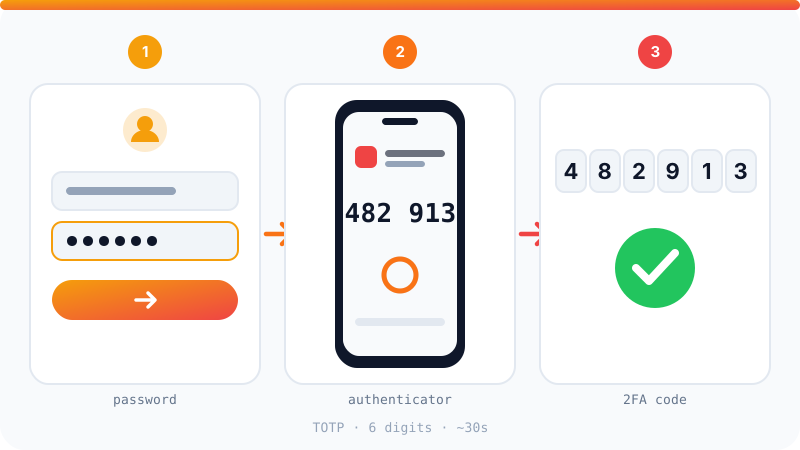
Two-factor authentication combines two different kinds. You sign in with your password as usual, then the site asks for a 6-digit code shown in an app on your phone, which changes roughly every 30 seconds. Without the phone, the password alone gets nobody in.
Why a password alone isn't enough
- Data breaches: when a site gets hacked, lists of emails and passwords end up circulating online.
- Password reuse: if you use the same password on several sites, one leak exposes all of them.
- Phishing: a fake page that looks like the real login screen captures whatever you type.
A password manager fixes reuse, and 2FA protects you when a password leaks anyway. We cover the first in the best password managers.
2FA methods compared
| Method | Security | Ease of use | Notes |
|---|---|---|---|
| SMS code | Low | Very easy | Vulnerable to SIM swapping and scams |
| Email code | Low to medium | Easy | Only as strong as your email security |
| Authenticator app | Good | Easy | Works offline, doesn't depend on your mobile network |
| Push approval | Good | Very easy | Never approve a request you didn't start |
| Security key or passkey | Excellent | Easy once set up | Phishing-resistant because it's tied to the real site |
If a site offers several methods, pick the strongest one and add a second method as a backup.
What about passkeys?
Passkeys are a newer way to sign in, supported by many services including Google, Apple and Microsoft. Instead of typing a password, your device uses a cryptographic key stored on it, and you confirm it's you with your fingerprint, face or screen lock. There's nothing to type that a fake site could steal, because the key only works with the real site. If your account offers to create a passkey, it's an excellent choice; just keep a backup recovery method too.
Popular authenticator apps
All of these are free and use the same standard (TOTP), so they work with any site that asks for an "authenticator app":
- Google Authenticator: simple, and can sync codes to your Google account so they aren't lost with your phone.
- Microsoft Authenticator: works with Microsoft accounts and any other service, and supports backup.
- 2FAS: free and open source, for iPhone and Android.
- Aegis: open source for Android, storing codes in an encrypted file on your device.
Some password managers can also hold 2FA codes. That's convenient, but it puts your password and your second factor in the same place. For your most important accounts, like your main email, it's safer to keep them separate.
How to turn on 2FA step by step
The steps are nearly identical everywhere:
- Open your account's security settings and look for two-factor authentication or 2-Step Verification.
- Choose authenticator app as the method.
- A QR code appears. Open your authenticator app, tap the add button and scan it.
- The app shows a 6-digit code. Type it into the site to confirm.
- Save the backup codes the site gives you (more on that below).
Where to find it on popular services
- Google: in your Google Account settings, under Security, then 2-Step Verification.
- Facebook and Instagram: in Accounts Center, under Password and security, then Two-factor authentication.
- WhatsApp: Settings, then Account, then Two-step verification, where you choose a 6-digit PIN.
- Microsoft: on your Microsoft account's security page, under the advanced security options.
Menu names shift a little with updates, but the option always lives under security or privacy settings.
Go in this order: your main email first, since it's the recovery key for every other account, then your bank, then social media, then everything else.
Backup codes: don't skip them
When you turn on 2FA, most sites give you a list of backup codes, each usable once. They're often your only way back in if you lose your phone.
- Print them or write them down and keep the paper somewhere safe at home.
- Or store them in your password manager.
- Don't keep them as a photo on the same phone that runs your authenticator app.
Watch out for these tricks
2FA is strong, so scammers try to get you to hand over the code yourself:
- "I sent you a code by mistake": a message from a friend or an unknown number asking for a code you just received. That code is often a WhatsApp activation code, or the key to another of your accounts. Never send it.
- Calls claiming to be your bank or tech support: no legitimate organisation asks you for a verification code.
- A flood of approval prompts: if you get sign-in approvals you didn't start, deny them all and change your password immediately, because someone knows it.
- Links in messages: go to the site by typing its address yourself rather than tapping a link someone sent you.
When you change phones
Before you wipe or sell your old phone, move your authenticator accounts to the new one. Most apps have an option to transfer or export accounts, or sync them through a cloud account. Check that the codes work on the new phone, then wipe the old one.
If you rely on text messages, make sure the phone number saved in your accounts is still correct before you change your SIM or number. An old number in your account settings can lock you out later.
And since so much of your life sits on your phone, take a proper backup of your files before any big change.
Frequently asked questions
What if I lose the phone with my authenticator app?
Use one of the backup codes you saved when you set up 2FA to sign in, then link the account to your new phone. If your authenticator app supports backup or cloud sync, you can restore your codes from there directly.
Is SMS 2FA better than nothing?
Yes, much better. Text messages are the weakest method because of SIM swapping and scams, but they still beat a password on its own. Move to an authenticator app when you can.
Can an account with 2FA still be hacked?
It's much harder, but not impossible. The most common trick is getting you to type the code into a fake site or send it to a scammer. Security keys and passkeys resist this kind of phishing because they're tied to the real website's address.
Is WhatsApp two-step verification the same thing?
It's a similar idea. In WhatsApp you choose a 6-digit PIN that's required when your number is registered on a new phone, on top of the SMS code. Turn it on in the account settings.
Do I need a different authenticator app for each site?
No. One authenticator app can hold codes for dozens of accounts from different sites, because most sites use the same standard. The exception is that some services prefer their own app for push approvals.
Related tutorials
Tools & productivity
How to Back Up Your Files Properly (The 3-2-1 Rule)
A practical backup guide: the 3-2-1 rule explained, backup vs sync, and how to set up File History, Time Machine and cloud storage step by step.
· 6 min read
Tools & productivity
Best Chrome Extensions for Productivity (Free and Trusted)
A short list of trusted Google Chrome extensions for productivity: ad blocking, writing, translation, tabs and passwords, plus tips to stay safe.
· 5 min read
Tools & productivity
Best Password Managers: Free and Paid Options Compared
A neutral comparison of well-known password managers, including Bitwarden, 1Password, Proton Pass, Google and Apple, and how to switch over safely.
· 5 min read