How to Speed Up a Slow Laptop: Practical Steps Without Extra Software
Why your Windows laptop is slow and how to fix it step by step: startup apps, disk space, updates, malware scans, and when an SSD or more RAM is worth it.
Published 5 min read
In this article
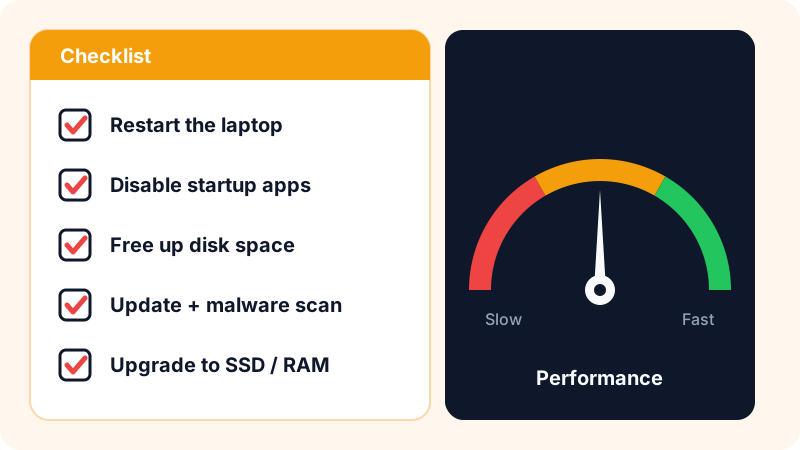
A laptop usually gets slow because of too many apps launching at startup, a nearly full drive, lots of browser tabs, outdated or malicious software, or an old spinning hard drive (HDD). Start with the free fixes: restart, disable startup apps, free up space, update and scan. If it is still slow after that, upgrading to an SSD is the single biggest improvement you can make.
In short: open Task Manager to find the cause, fix it with the tools already built into Windows, and skip the "speed booster" downloads.
Start with a Restart, not a Shut down
It sounds too simple, but it fixes a surprising number of problems. On Windows 10 and 11, Fast Startup is usually turned on. It makes Shut down save part of the system state so the next boot is quicker, which means your laptop never really starts fresh.
Restart fully reloads Windows, clears memory and finishes any pending updates. If your laptop has been running for days without a restart, begin here.
To see how long your laptop has been running since its last real restart, open Task Manager, go to the Performance tab, click CPU and look at Up time. If it shows days or weeks, that alone may explain some of the slowness.
Find out what is slowing you down with Task Manager
Don't guess. Press Ctrl + Shift + Esc to open Task Manager, go to the Processes tab, and click the CPU, Memory or Disk column header to sort apps by how much they use.
| What you see | Likely cause | Fix |
|---|---|---|
| Disk near 100% all the time | Slow HDD or an update running in the background | Let updates finish, consider an SSD |
| Memory very high | Too many tabs and apps open | Close what you don't need, or add RAM |
| One app using lots of CPU | A stuck or heavy app | Close it or update it |
| Everything looks normal but it's slow | Overheating or power settings | See the power and heat section below |
If you find a frozen app, select it and click End task. For more time savers, see our list of Windows keyboard shortcuts.
Turn off apps that launch at startup
Lots of apps quietly add themselves to startup: chat apps, cloud storage clients, media players, updaters. Each one takes some memory and slows down boot.
- Open Task Manager.
- Go to the startup tab (called Startup apps in Windows 11 and Startup in Windows 10).
- Check the Startup impact column.
- Right-click anything you don't need right away and choose Disable.
You'll find the same list under Settings, then Apps, then Startup.
Leave your security software alone, and don't disable utilities you know belong to your audio or touchpad drivers. Disabling an app at startup doesn't uninstall it; you can still open it whenever you need it.
Free up disk space
When your drive is almost full, Windows slows down because it needs free space for temporary files and updates. To make room:
- Open Settings, then System, then Storage to see what is taking up space.
- Turn on Storage Sense so Windows cleans up temporary files and old Recycle Bin items automatically.
- Uninstall apps you no longer use from Settings, then Apps.
- Check your Downloads folder. It is often full of old installers.
- Move large photo and video collections to an external drive or cloud storage.
Update Windows and scan for malware
- Windows Update: install available updates. They include performance and security fixes.
- Drivers: update them through Windows Update or directly from your laptop maker's website, never from random "driver download" sites.
- Windows Security: the antivirus built into Windows. Run a Quick scan, and if something still feels wrong, run a Full scan.
Avoid unknown "cleaner" and "RAM booster" tools. Most of them add nothing, and some run in the background and make things worse.
Lighten the load on your browser
Your browser is often the biggest memory user on the machine. Every open tab and every extension takes a share.
- Close tabs you don't need, or bookmark them for later.
- Remove extensions you don't use.
- In Chrome and Edge, press
Shift + Escto open the browser's own task manager and see exactly how much each tab and extension uses.
Choose your extensions carefully. Our list of the best Chrome extensions for productivity sticks to lightweight, useful ones.
Power settings, visual effects and heat
- Power mode: in Windows 11, open Settings, then System, then Power & battery, and choose a mode that favours performance while you're plugged in. On battery, laptops deliberately slow down to save power.
- Visual effects: search the Start menu for "Adjust the appearance and performance of Windows" and choose Adjust for best performance. This helps older machines the most.
- Heat: when the processor gets too hot, it slows itself down to stay safe. Use your laptop on a hard, flat surface rather than a bed or sofa, and make sure the vents aren't clogged with dust.
Upgrade: SSD and RAM
If you've tried everything above and it's still slow, the bottleneck is probably the hardware.
Check your drive type: open Task Manager, go to the Performance tab and click your disk. You'll see SSD or HDD next to it. If it says HDD, moving to an SSD is the upgrade you'll feel most: much faster boot times and app launches.
Check your memory: on the same tab, click Memory to see the total amount and how many slots are in use (Slots used). Some laptops have memory soldered to the motherboard that can't be upgraded, so check your model's specifications before you buy anything.
Last resort: reset Windows
If Windows itself is badly cluttered, use Reset this PC from the Recovery settings. You can choose to keep your personal files, but your installed apps will be removed.
Before any reset, make a full backup of your files. Here's how to back up your files properly.
Frequently asked questions
Are PC cleaner and speed booster apps worth it?
Usually not. The tools built into Windows, such as Storage Sense, Task Manager and Windows Security, are enough for most people. Some booster apps run in the background themselves and use resources, and some show ads or bundle other software.
Should I shut down my laptop every day or use sleep?
Sleep is fine for short breaks. But do a full Restart every so often, because it clears memory and finishes installing updates, which a normal Shut down doesn't do when Fast Startup is turned on.
How much RAM do I need for everyday use?
For browsing, documents and video calls, 8 GB is a comfortable minimum on Windows 11, and 16 GB is better if you keep many tabs open or do programming or design work. Check first whether your laptop's memory can be upgraded.
Will Reset this PC delete my files?
Windows gives you two choices: keep your personal files or remove everything. Even if you keep your files, your installed apps are removed, so make a backup before you start.
Related tutorials
Tools & productivity
How to Back Up Your Files Properly (The 3-2-1 Rule)
A practical backup guide: the 3-2-1 rule explained, backup vs sync, and how to set up File History, Time Machine and cloud storage step by step.
· 6 min read
Tools & productivity
Best Chrome Extensions for Productivity (Free and Trusted)
A short list of trusted Google Chrome extensions for productivity: ad blocking, writing, translation, tabs and passwords, plus tips to stay safe.
· 5 min read
Tools & productivity
Best Password Managers: Free and Paid Options Compared
A neutral comparison of well-known password managers, including Bitwarden, 1Password, Proton Pass, Google and Apple, and how to switch over safely.
· 5 min read