Windows Keyboard Shortcuts You Should Know
The most useful Windows 10 and Windows 11 keyboard shortcuts: copy and paste, switching windows, screenshots, File Explorer, and locking your PC in one press.
Published 6 min read
In this article
Windows keyboard shortcuts are key combinations that run common commands instantly instead of hunting for them with the mouse. The essentials are Ctrl + C and Ctrl + V to copy and paste, Alt + Tab to switch between apps, Win + Shift + S to take a screenshot, and Win + L to lock your PC. Learning just ten of them will save you a noticeable amount of time every day.
In short: start with copy, paste and undo, then learn window switching, then screenshots, and add one new shortcut a week until it becomes a habit.
Before you start: what is the Win key?
In this article, Win means the Windows logo key, usually found between Ctrl and Alt at the bottom left of your keyboard. Pressing it on its own opens the Start menu.
To use any shortcut, hold down the first key (for example Ctrl), press the second key, then release both.
Basic copy and editing shortcuts
These work almost everywhere: in your browser, Word, Excel and File Explorer.
| Shortcut | What it does |
|---|---|
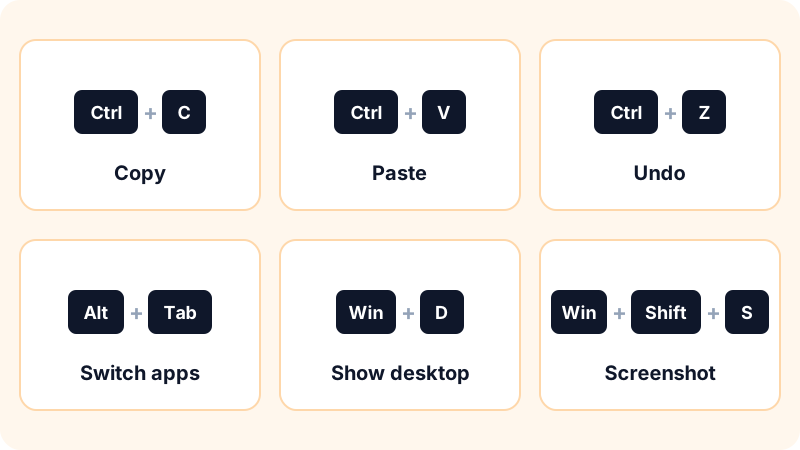
Ctrl + C |
Copy |
Ctrl + X |
Cut |
Ctrl + V |
Paste |
Ctrl + Z |
Undo the last action |
Ctrl + Y |
Redo (in most apps) |
Ctrl + A |
Select all |
Ctrl + S |
Save |
Ctrl + F |
Find in the page or file |
Ctrl + P |
Ctrl + Z is the most valuable shortcut on this list. Deleted a paragraph by accident? Moved a file into the wrong folder? Try Ctrl + Z before you panic.
Switching between windows and apps
Alt + Tab: switch between open apps. Keep holdingAltand tapTabrepeatedly to pick one.Win + Tab: open Task View to see all your windows at once.Win + D: show the desktop. Press it again to bring your windows back.Win + M: minimise all windows.Win + ←orWin + →: snap the window to half of the screen. Great for comparing two documents side by side.Win + ↑: maximise the window.Win + ↓: minimise or restore it.Win + number: open the app pinned to the taskbar in that position.Win + 1opens the first one.Alt + F4: close the current window. On the desktop, it opens the shut down dialog.Win + Z: Windows 11 only. Shows the Snap layouts for arranging windows.
Virtual desktops
If you juggle several projects, you can keep them on separate desktops:
Win + Ctrl + D: create a new virtual desktop.Win + Ctrl + ←or→: move between desktops.Win + Ctrl + F4: close the current desktop.
Screenshots and the clipboard
Win + Shift + S: opens the snipping tool so you can select part of the screen. The image is copied to the clipboard, ready to paste withCtrl + V.Win + PrtScn: captures the whole screen and saves it automatically to the Screenshots folder inside Pictures.PrtScnon its own: depending on your settings, it either copies the full screen to the clipboard or opens the snipping tool.Win + V: opens clipboard history, so you can paste something you copied earlier, not just the last item. Windows asks you to turn it on the first time.Win + .(period): opens the emoji and symbols panel.
File Explorer shortcuts
| Shortcut | What it does |
|---|---|
Win + E |
Open File Explorer |
F2 |
Rename the selected file |
Ctrl + Shift + N |
Create a new folder |
Alt + Enter |
Show file properties |
Alt + ↑ |
Go up one folder |
Ctrl + L |
Jump to the address bar to type a path |
F5 |
Refresh the folder |
Delete |
Move the file to the Recycle Bin |
Shift + Delete |
Delete permanently, skipping the Recycle Bin |
Be careful with Shift + Delete: there is no Recycle Bin safety net. If your files matter, read our guide on how to back up your files properly.
System and security shortcuts
Win + L: lock your PC instantly. Make it a habit every time you step away from your desk.Win + I: open Settings.Ctrl + Shift + Esc: open Task Manager directly. It is the first place to look when your computer feels slow, as we explain in how to speed up a slow laptop.Ctrl + Alt + Delete: show the security screen with options like lock, sign out and Task Manager.Win + X: open the Quick Link menu with tools such as Device Manager and Disk Management.Win + R: open the Run box to launch commands likecmdornotepad.Win + P: choose a display mode when you connect a second monitor or projector.
Browser and text editing shortcuts
These aren't part of Windows itself, but they work in most browsers, including Chrome, Edge and Firefox:
Ctrl + T: open a new tab.Ctrl + W: close the current tab.Ctrl + Shift + T: reopen the tab you just closed by mistake.Ctrl + Tab: go to the next tab.Ctrl + L: select the address bar.Ctrl + +andCtrl + -: zoom in and out.Ctrl + 0resets the zoom.
When you're typing:
Ctrl + ←or→: jump a whole word instead of one character.Ctrl + Shift + ←or→: select a whole word.HomeandEnd: go to the start or end of the line.Ctrl + Backspace: delete the previous word in most modern apps.
If you spend most of your day in the browser, also take a look at the best Chrome extensions for productivity.
How to make shortcuts stick
Don't try to memorise everything at once. Try this instead:
- Pick just 3 shortcuts this week, for example
Win + Shift + S,Alt + TabandWin + L. - Write them on a sticky note next to your screen.
- Whenever you reach for the mouse to do one of them, stop and use the shortcut instead.
- Next week, add 3 more.
After about a month you'll be using them without thinking. And if you work in spreadsheets a lot, the natural next step is learning the most important Excel functions.
Frequently asked questions
Do these shortcuts work in both Windows 10 and Windows 11?
Yes. Every shortcut in this article works in both versions, except the ones marked as Windows 11 only, such as Win + Z. The window that appears may look a little different between versions, but it does the same job.
Why doesn't F2 or F5 work on my laptop?
On many laptops the F keys control volume and brightness by default. Hold the Fn key while pressing the F key, or look for an Fn lock option on the keyboard or in your laptop's BIOS settings.
Can I create my own keyboard shortcuts in Windows?
You can assign a key combination to open any program from the Properties of its desktop shortcut, using the Shortcut key field. For deeper customisation, Microsoft's free PowerToys app lets you remap keys and shortcuts.
What is the difference between Delete and Shift + Delete?
Delete moves a file to the Recycle Bin, where you can still restore it. Shift + Delete removes it without going through the Recycle Bin, so use it with care.
Related tutorials

Tools & productivity
How to Back Up Your Files Properly (The 3-2-1 Rule)
A practical backup guide: the 3-2-1 rule explained, backup vs sync, and how to set up File History, Time Machine and cloud storage step by step.
· 6 min read

Tools & productivity
Best Chrome Extensions for Productivity (Free and Trusted)
A short list of trusted Google Chrome extensions for productivity: ad blocking, writing, translation, tabs and passwords, plus tips to stay safe.
· 5 min read
Tools & productivity
Best Password Managers: Free and Paid Options Compared
A neutral comparison of well-known password managers, including Bitwarden, 1Password, Proton Pass, Google and Apple, and how to switch over safely.
· 5 min read