Git and GitHub for Beginners: A Step-by-Step Guide
Learn Git and GitHub from zero: install Git, make your first commit, push your project to GitHub, and use branches safely, with every command explained.
Published 6 min read
In this article
- What is the difference between Git and GitHub?
- Step 1: Install Git and tell it who you are
- Step 2: Create a repository and make your first commit
- How Git moves your changes: the three areas
- Step 3: Push your project to GitHub
- Branches: try ideas without breaking your main code
- A cheat sheet of everyday commands
- Common beginner mistakes
Git is a free tool that records every change you make to your code, so you can go back to any earlier version. GitHub is a website that stores your Git projects online, so you can back them up, share them, and work with other people. You use Git on your computer and push your work to GitHub.
In short: install Git, run git init, save snapshots with git add and git commit, then connect a GitHub repository and upload with git push.
What is the difference between Git and GitHub?
People often mix them up, but they are two different things:
| Git | GitHub | |
|---|---|---|
| What it is | A version control program | A website and service |
| Where it runs | On your computer | In the cloud |
| Needs internet? | No | Yes |
| Main job | Track changes and history | Host, share, and collaborate on repositories |
Git works completely offline. GitHub is one of several services that host Git repositories (GitLab and Bitbucket are others). This guide uses GitHub because it is the most common place beginners share code.
Step 1: Install Git and tell it who you are
- Download Git from the official site, git-scm.com. On Windows, the installer's default options are fine for beginners.
- On macOS, running
git --versionin Terminal will offer to install Apple's command line tools, which include Git. - On Linux, install it with your package manager, for example
sudo apt install git.
Check that it worked:
git --version
Next, set the name and email that will appear on your commits. Use the same email as your GitHub account:
git config --global user.name "Your Name"
git config --global user.email "[email protected]"
You only do this once per computer.
Step 2: Create a repository and make your first commit
A repository (or repo) is simply a project folder that Git is tracking. Open a terminal inside your project folder and run:
git init -b main
This creates a hidden .git folder where Git keeps the full history. The -b main part names your first branch main, which matches GitHub's default.
Now check what Git sees:
git status
New files show up as "untracked". To save them in history you do two things:
git add .
git commit -m "First commit"
git add .puts all changed files into the staging area, a list of what goes into the next snapshot.git commit -m "..."saves that snapshot with a short message describing the change.
Run git log --oneline to see your commits, each with a short ID.
How Git moves your changes: the three areas
It helps to picture three places your files pass through, plus GitHub:
- Working directory: the files you are editing right now.
- Staging area: changes you have marked with
git addfor the next commit. - Local repository: the commits saved on your computer.
- GitHub (remote): a copy of your repository online, updated with
git push.
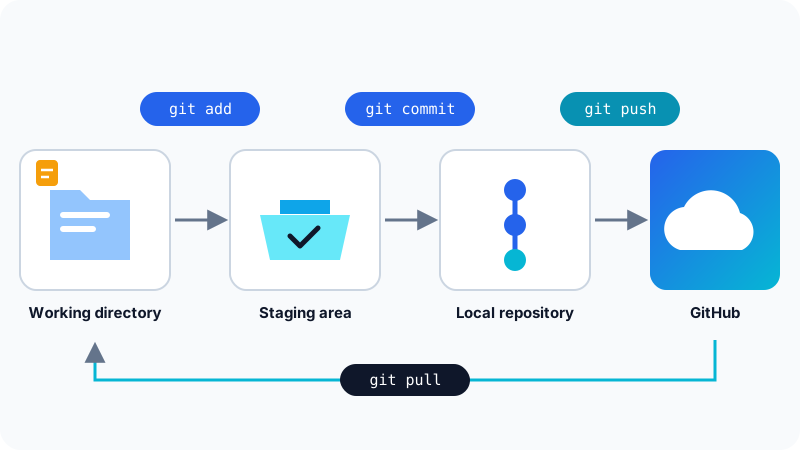
The staging area lets you commit only part of your work. For example, git add index.html stages a single file and leaves the others for a later commit.
Step 3: Push your project to GitHub
- Create a free account on github.com if you don't have one.
- Create a new repository from the + menu at the top of the page. Give it a name, choose public or private, and leave it empty (don't add a README if you already have files locally).
- GitHub shows you the repository's URL. Connect your local project to it and push:
git remote add origin https://github.com/your-username/my-project.git
git push -u origin main
origin is just the usual nickname for your GitHub copy. The -u flag remembers the connection, so next time you only need to type git push.
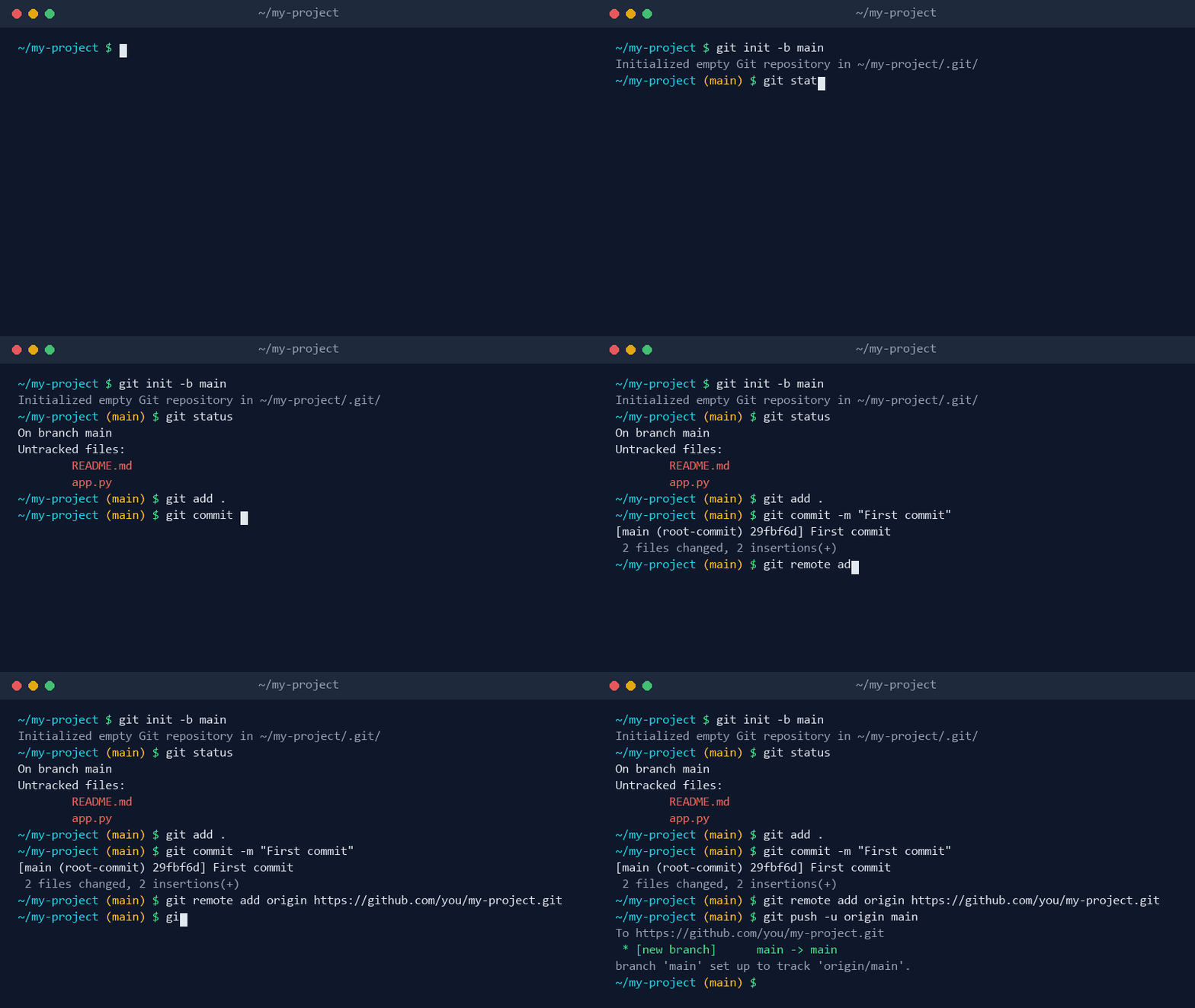
The first time you push, Git asks you to sign in. On Windows, Git Credential Manager usually opens a browser window where you log in to GitHub. If you are asked for a password in the terminal, your normal GitHub password will not work; use a personal access token or set up an SSH key as described in GitHub's documentation.
To download an existing project from GitHub, use git clone with its URL. To bring in changes that were pushed from another computer, run git pull.
Branches: try ideas without breaking your main code
A branch is a separate line of work. You create one, experiment freely, and merge it back only when it works:
git switch -c new-feature    # create a branch and move to it
# ...edit files, then add and commit as usual...
git switch main              # go back to main
git merge new-feature        # bring the changes into main
On GitHub, teams usually push the branch and open a pull request instead of merging locally. A pull request shows the changes so others can review them before they are merged.
A cheat sheet of everyday commands
| Command | What it does |
|---|---|
git status |
Shows changed, staged, and untracked files |
git add <file> |
Stages a file for the next commit |
git commit -m "msg" |
Saves a snapshot with a message |
git log --oneline |
Lists commits in short form |
git diff |
Shows changes that are not staged yet |
git push |
Uploads your commits to GitHub |
git pull |
Downloads and merges new commits from GitHub |
git clone <url> |
Copies a repository to your computer |
If you use VS Code, its Source Control panel runs these same commands with buttons. See our VS Code setup guide for the editor side.
Common beginner mistakes
- Committing secrets. Passwords, API keys, and
.envfiles should never be committed. Add them to a.gitignorefile before your first commit. Removing a secret later does not erase it from history, so rotate any key you leak. - Huge commits with vague messages. Commit small, related changes with clear messages like "Add contact form validation". Future you will thank you.
- Committing generated folders. Folders like
node_modulesor build output can be recreated, so list them in.gitignore. - Working only on
main. Use a branch for anything experimental. - Forgetting to pull. If you work from two computers, run
git pullbefore you start.
Git is one of the first professional tools every developer learns, so it fits early in any plan to learn programming from scratch. Once your code is on GitHub you can also publish simple sites for free, as covered in our guide to free website hosting, and AI assistants can explain confusing Git errors, as shown in how to use AI to help you code.
Frequently asked questions
Is GitHub free?
Yes. The free plan lets you create unlimited public and private repositories, which is more than enough for learning and personal projects. Paid plans add team and enterprise features.
Do I have to use the command line to work with Git?
No. VS Code has Git built in, and GitHub Desktop gives you buttons for commit, push, and pull. Learning the basic commands is still worth it, because every tutorial and error message uses them.
Why does GitHub reject my password when I push?
GitHub stopped accepting your account password for Git over HTTPS in 2021. Sign in through the browser window that Git Credential Manager opens (included with Git for Windows), or use a personal access token or an SSH key instead.
Can other people see my code on GitHub?
Only if the repository is public. When you create a repository you choose public or private, and you can change it later from the repository settings. Never commit passwords or API keys, even to a private repository.
Related tutorials
Programming
How to Use AI to Help You Code (A Practical Guide for Beginners)
Learn how to use AI assistants like ChatGPT, Claude and GitHub Copilot to write, explain and debug code, plus the mistakes to avoid when coding with AI.
· 6 min read
Programming
Which Programming Language Should You Learn First?
Python or JavaScript? Find the best first programming language for your goal, whether that's websites, data and AI, mobile apps, or games, and how to start.
· 5 min read
Programming
Frontend vs Backend: What's the Difference?
Frontend is what you see in the browser; backend is the server, logic, and database behind it. Learn the difference, the languages, and which path suits you.
· 5 min read