Google Gemini Guide: How to Use It and What It's Good At
A practical guide to Google Gemini: how to start on the web and phone, what it does well, how it connects to Gmail and Drive, plans and privacy settings.
Published 7 min read
In this article
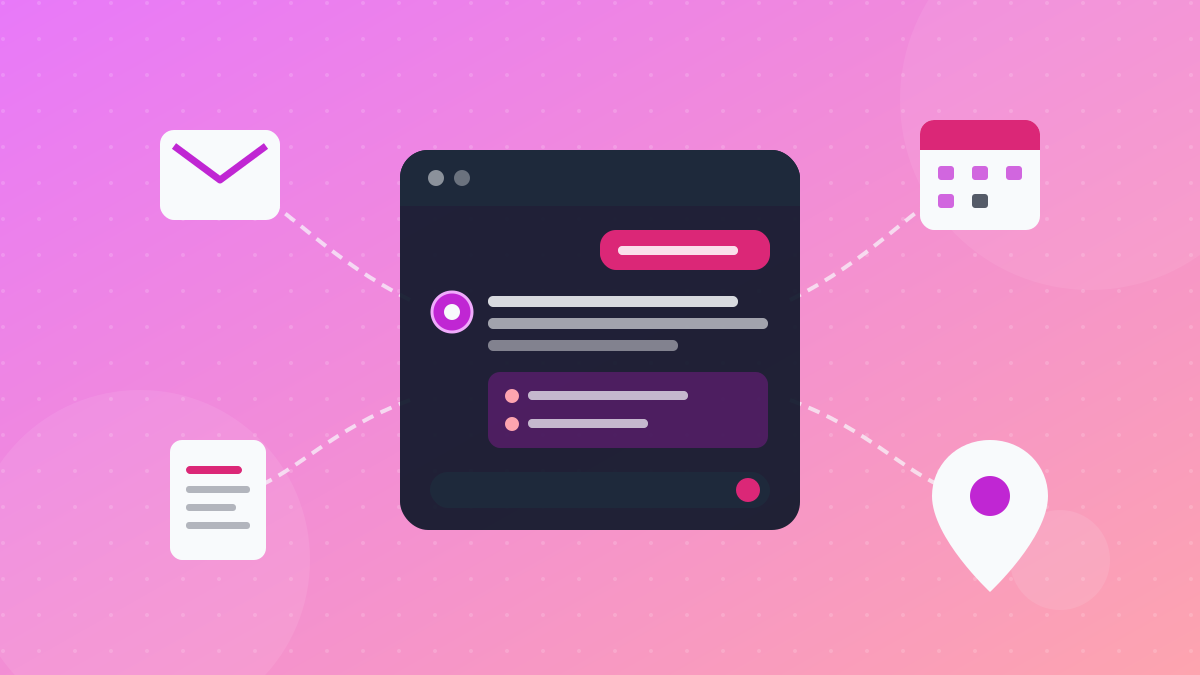
Google Gemini is Google's AI assistant. You chat with it on the web at gemini.google.com or in the mobile app to write, summarise, explain, plan, analyse files and create images. Its main advantage over other assistants is how closely it works with Google services such as Search, Maps, YouTube, Gmail and Drive.
The quick version: open gemini.google.com or install the Gemini app, sign in with your Google account, and start typing. Upload files when you need them, connect Google apps only if you want personalised help, and review your activity settings before sharing anything personal.
What is Google Gemini?
Gemini is both the name of Google's family of AI models and the name of the app you talk to. The models are built to handle text, images, audio, video and code, which is why you can show Gemini a photo or a PDF and ask questions about it.
Google updates the models often and the version numbers change every few months, so don't worry much about them. The app picks a sensible default and lets you switch models where your plan allows it.
You can use Gemini in several places:
- The website at gemini.google.com, in Chrome, Safari, Firefox, Edge or Opera.
- The mobile app on Android and on iPhone and iPad.
- Inside Google apps such as Gmail and Docs, depending on your plan or work account.
How to start with Gemini, step by step
On a computer
- Go to gemini.google.com.
- Sign in with your Google account. You can try a few prompts without signing in, but saving chats and most features need an account.
- Type your question in the box at the bottom and press Enter.
- To add a file or image, use the attachment button next to the message box. You can also pick files straight from Google Drive.
- Start a new chat for each new topic so older instructions don't carry over.
On your phone
- Install the official Gemini app from Google Play or the App Store.
- Sign in with the same Google account so your chats sync across devices.
- Type, speak, or attach a photo from your camera.
On many Android phones you can also set Gemini as the default assistant, so it opens from the power button or a voice command.
If you sign in with a work or school account, some features may be missing or switched off by your administrator. That's normal, not a fault with your account.
What Gemini is good at
- Writing and editing: emails, posts, summaries and rewrites in a clearer or shorter style. Gemini handles Arabic well, but review important text before you publish it.
- Questions that need fresh information: Gemini can use Google Search, so it is useful for recent topics. Still open the sources and check the facts that matter.
- Files and images: upload PDFs, documents, spreadsheets, photos or short videos and ask for a summary, a table, or an explanation. For tips on long documents, read how to summarise PDF files with AI.
- Deep Research: give it a topic and it browses many sources, then writes a structured report you can read and export. It takes longer than a normal reply but saves hours of searching.
- Gems: custom versions of Gemini with fixed instructions, for example a "CV reviewer" or "English tutor" you can reuse without repeating your prompt.
- Canvas: a side workspace for drafting longer documents or small pieces of code and editing them with Gemini.
- Gemini Live: a spoken, back-and-forth conversation on your phone, handy for practising a language or thinking out loud.
- Image creation: describe the image you want and Gemini generates or edits it.
Gemini and your Google apps
This is where Gemini differs most from ChatGPT and Claude. It can draw on Google services in two ways:
- Public services such as Search, Maps, YouTube, Flights and Hotels. Ask "find quiet cafés near me that open early" or "summarise this YouTube video" and Gemini uses those services to answer.
- Your personal apps such as Gmail, Drive, Docs, Calendar, Keep, Tasks and Photos. Once connected, you can ask "find the flight confirmation email from last month" or "summarise the latest report in my Drive."
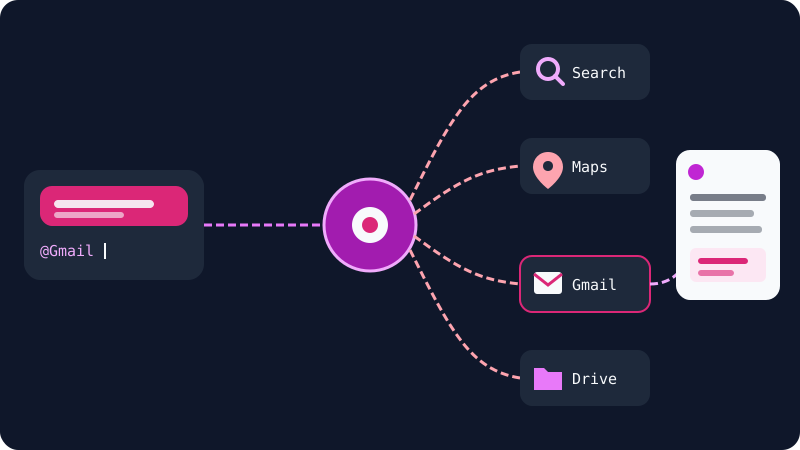
Connecting your personal apps is off by default. You choose which ones to connect in the settings and can turn them off at any time. Inside a chat you can type @ and pick an app to tell Gemini exactly where to look.
Separately, Google also builds Gemini into the side panel of Gmail, Docs, Sheets and other Workspace apps. Whether you get that depends on your plan or your organisation, so check what your account includes.
Free and paid plans
The free plan is generous for everyday use. Google's plans page currently lists the Gemini app, Deep Research, Gemini Live, Canvas, Gems and image creation as part of the free tier, with usage limits.
Paid plans are sold under the Google AI name and come in several tiers. In general, higher tiers give you:
- Higher usage limits and more access to the most capable models.
- Longer audio and video uploads.
- Gemini inside Gmail, Docs and other Google apps.
- More Google storage, shared across Gmail, Drive and Photos.
Plan names, features and prices change and vary by country, so check the official plans page before you subscribe. A practical approach: use the free plan for real work for a couple of weeks and upgrade only if you keep hitting the limits.
Privacy and activity settings
Before you share anything personal, spend two minutes on these settings:
- Keep Activity: when it's on, Google saves your Gemini chats in your account and may use them to improve its services. For adults it is on by default. You can turn it off or set chats to auto-delete after a few months.
- Temporary chats: a chat that doesn't appear in your history or activity. Useful for one-off questions. It is available with personal accounts.
- Human review: Google says a subset of chats is reviewed by trained reviewers to improve quality, so its own advice is not to type anything you wouldn't want a reviewer to see.
- Deleting chats: you can delete a single chat, a time range, or everything from the activity page.
Even with Keep Activity off, Google keeps conversations for up to 72 hours to run the service. The safest rule is simple: never paste passwords, bank details or national ID numbers into any AI chat. If you use Gemini with your Google account, protect that account with two-factor authentication.
Tips for better answers, and limitations
Tips:
- Be specific. "Write a polite 80-word reply declining this meeting and suggesting Thursday" beats "reply to this email".
- Ask for a format. A table, five bullet points, or a step-by-step list.
- Ask for sources on factual questions, then open them.
- Use Gems for tasks you repeat every week.
You'll find more examples in the prompt writing guide.
Limitations to keep in mind:
- Gemini can be confidently wrong about numbers, dates, quotes and legal or medical details. Google itself says to double-check responses.
- Features roll out gradually, so something you read about may not appear in your country, language or account yet.
- Work and school accounts often have features turned off by the administrator.
Gemini, ChatGPT or Claude?
Choose Gemini if you live in Google's ecosystem: Gmail, Drive, Docs, Android and YouTube. It's also a strong pick for research that needs current web information. ChatGPT is a good all-rounder with a large set of tools, and Claude stands out for long documents and careful writing. For a side-by-side comparison, read ChatGPT vs Claude vs Gemini. Many people use two of them and pick per task.
Official sources: Gemini Apps Help, Gemini Apps Privacy Hub, Google AI plans
Frequently asked questions
Do I need a Google account to use Gemini?
You can try the website with limited access without signing in, but most features, saved chats and the mobile app need a Google account. Work and school accounts only get Gemini if the organisation has enabled it.
Can Gemini read my Gmail without my permission?
No. Connecting Gemini to personal apps such as Gmail, Drive or Photos is off by default. You choose which apps to connect and can disconnect them at any time from the Gemini settings.
What is the difference between Gemini and Google Search?
Search gives you a list of web pages to read yourself. Gemini holds a conversation, writes and rewrites text, works with your uploaded files and can follow up on earlier messages. It can also use Search to look things up, but its answers still need checking.
How do I stop Gemini saving my chats?
Turn off Keep Activity in Gemini's activity settings, or start a temporary chat for a single conversation. Google says chats are still kept for up to 72 hours to run the service, so avoid sharing sensitive data either way.
Related tutorials
AI tools
NotebookLM Guide (Now Gemini Notebook): Study Your Files with AI
How to use NotebookLM, now called Gemini Notebook: add PDFs and links, get answers with citations, and create audio overviews, flashcards and quizzes.
· 6 min read
AI tools
How to Use AI to Write and Improve Your CV (Step by Step)
A practical way to use ChatGPT, Claude and Gemini to write your CV, tailor it to a job ad and pass ATS filters, with ready-to-use prompts and mistakes to avoid.
· 6 min read

AI tools
ChatGPT for Beginners: Everything You Need to Know to Get Started
A plain guide to ChatGPT: what it is, how to sign up and start your first chat, free vs paid plans, and how to use it safely and get better answers.
· 6 min read