NotebookLM Guide (Now Gemini Notebook): Study Your Files with AI
How to use NotebookLM, now called Gemini Notebook: add PDFs and links, get answers with citations, and create audio overviews, flashcards and quizzes.
Published 6 min read
In this article
NotebookLM is a free Google research and study tool. You upload your own sources, such as PDFs, Google Docs, web pages or YouTube videos, and it answers your questions with citations that point back to the exact passages. It can also turn your material into audio overviews, flashcards, quizzes and study guides. In July 2026 Google renamed it Gemini Notebook, but it's the same tool.
Short answer: go to notebooklm.google, create a notebook, add your sources, then ask questions and check the numbered citations. Use the Studio panel to generate study aids, and keep anything confidential out of your notebooks.
What is NotebookLM (Gemini Notebook)?
Most AI chatbots answer from what they learned during training plus, sometimes, a web search. NotebookLM works the other way round: you decide the sources, and it answers from them. Think of it as a study partner that has read only your course notes, your reports or your research papers, and can point to the exact sentence it used.
On 16 July 2026 Google renamed NotebookLM to Gemini Notebook to tie it more closely to the Gemini family. According to Google's announcement, it remains a standalone product at the same address, run by the same team, and existing notebooks and sources stay as they are. Notebooks you create inside the Gemini app also sync with it. Since most people still search for "NotebookLM", this guide uses both names.
How to create your first notebook
- Go to notebooklm.google and sign in with your Google account. It redirects to the current Gemini Notebook site.
- Choose to create a new notebook.
- Add at least one source (see the next section).
- Wait a moment while it processes the sources, then start asking questions in the chat panel.
- Give the notebook a clear name, such as "Biology chapter 4" or "Q3 market report".
There is also a mobile app for Android and iPhone, which is handy for listening to audio overviews on the go.
Adding sources: PDFs, docs, links and more
Google's help pages list a wide range of supported sources:
- Files: PDFs, Word documents, ePub books, images, and audio files such as MP3 and WAV.
- Google files: Docs and other Google Drive files. Drive sources can stay in sync with the original file.
- Web links: paste a URL and it imports the page's text.
- YouTube: public videos that have captions.
- Copied text: paste notes or text from anywhere.
There are limits. Each source can be up to 500,000 words or 200 MB for uploaded files, and free users can add up to 50 sources per notebook, with higher limits on paid plans. If you remove access to a Drive file or delete it, that source stops working in the notebook.
A tip: keep each notebook focused on one topic. A notebook for a single course or project gives sharper answers than one huge notebook with everything in it.
Asking questions and checking citations
Type a question in the chat panel, for example:
- "Summarise the main argument of each source in three bullet points."
- "What do these two reports disagree on?"
- "Explain the term 'opportunity cost' using only the examples in my lecture notes."
- "Make a timeline of the events mentioned in these sources."
Answers include small numbered in-line citations. Select a number and NotebookLM shows you the passage in your source that it relied on. This is its biggest advantage: you can check every claim in seconds instead of trusting the AI blindly.
If you want the same answer in a different language or level, just ask: "Explain this again in simple Arabic for a high-school student." For more on writing good questions, see the prompt writing guide.
Study tools in the Studio panel
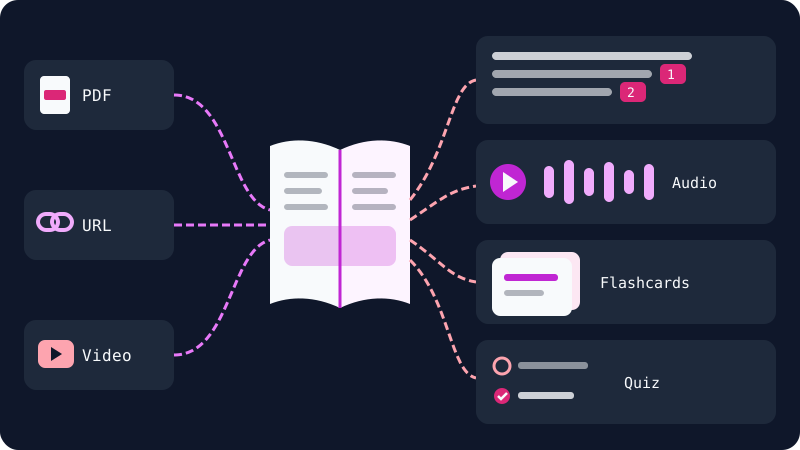
The Studio panel turns your sources into ready-made study material with a click:
| Tool | What it creates | Good for |
|---|---|---|
| Audio Overview | A podcast-style conversation between two AI hosts about your sources | Revising while walking or commuting |
| Video Overview | A narrated video with visuals that explains your material | Visual learners and quick introductions |
| Flashcards | Question and answer cards; mark the ones you got right or missed | Memorising terms and definitions |
| Quizzes | Practice questions with adjustable difficulty | Testing yourself before an exam |
| Mind Map | A visual map of the main topics and how they connect | Seeing the big picture |
| Reports | Study guides, briefing documents and other written summaries | Quick review notes |
A few useful details from Google's help pages:
- Audio Overviews come in formats such as a deep dive, a short brief, a critique and a debate, and you can add instructions like "focus on chapter 3" or "explain it for beginners." In English you can even join the conversation and ask the hosts a question.
- Flashcards and quizzes have an "Explain" option that goes deeper into an answer, so a wrong answer becomes a lesson.
- Google warns that audio overviews are AI-generated and may contain inaccuracies, so treat them as a revision aid, not the final word.
Infographics and slide decks are also listed in the Studio panel, though availability may vary by account and language.
Use cases for students and professionals
Students:
- Upload lecture slides and notes, then generate flashcards and a quiz before the exam.
- Listen to an audio overview of a long chapter on the way to university.
- Ask "what are the five most likely exam topics in this material?" and check the citations.
- Compare several research papers for a literature review.
Professionals:
- Load policy documents or contracts and ask precise questions with cited answers.
- Summarise long meeting transcripts or market reports into a briefing document.
- Build an onboarding notebook for new team members with the key documents.
- Prepare for a presentation by asking the notebook to list likely questions from the audience.
If you only need a quick summary of a single file, a general assistant is often enough; see how to summarise PDF files with AI. NotebookLM shines when you work with several sources and want answers you can verify.
Limits and privacy
Limits to keep in mind:
- Answers are only as good as your sources. If a topic isn't in them, NotebookLM may say so or give a weak answer.
- It can still misread a table or merge two ideas, so check the citation for anything important.
- Free accounts have usage limits on sources and generated content.
- New features roll out gradually and may not appear in every country or language straight away.
Privacy:
- Google states that content in Gemini Notebook isn't used to directly train its foundation models, unless you choose to send feedback.
- If you do send feedback, the interaction may be reviewed by trained teams.
- With work or school Google Workspace accounts, Google says uploads and chats are not reviewed by humans or used to train models.
Even so, don't upload passwords, bank statements, medical records or other people's private data. For a broader look at Google's assistant, read the Google Gemini guide.
Official sources: Gemini Notebook Help, NotebookLM is now Gemini Notebook (Google blog), Privacy in Gemini Notebook
Frequently asked questions
Is NotebookLM the same as Gemini Notebook?
Yes. Google renamed NotebookLM to Gemini Notebook in July 2026. It is the same tool run by the same team, and existing notebooks and sources were kept. The old notebooklm.google address still takes you there.
Is NotebookLM free?
Yes, there is a free version with usage limits, such as a cap on the number of sources per notebook. Paid Google AI plans raise those limits and add more audio and video summaries. Check the official plans page for current details.
Does NotebookLM search the internet when it answers?
Its chat answers are based on the sources you added to the notebook, with citations pointing to them. You can use it to find and add new web sources, but the answers themselves are meant to stay grounded in your sources.
Can I use NotebookLM in Arabic?
Yes. Google says it supports more than 80 languages, including for Audio Overviews. A few options, such as changing the audio length or joining the audio conversation, may be limited to English for now.
Can I share a notebook with my study group?
Yes, you can share a notebook with other people, much like sharing a Google Doc. Only share notebooks whose sources you are allowed to share, and remove anything personal first.
Related tutorials
AI tools
Google Gemini Guide: How to Use It and What It's Good At
A practical guide to Google Gemini: how to start on the web and phone, what it does well, how it connects to Gmail and Drive, plans and privacy settings.
· 7 min read
AI tools
How to Use AI to Write and Improve Your CV (Step by Step)
A practical way to use ChatGPT, Claude and Gemini to write your CV, tailor it to a job ad and pass ATS filters, with ready-to-use prompts and mistakes to avoid.
· 6 min read

AI tools
ChatGPT for Beginners: Everything You Need to Know to Get Started
A plain guide to ChatGPT: what it is, how to sign up and start your first chat, free vs paid plans, and how to use it safely and get better answers.
· 6 min read