How to Buy a Domain on Namecheap Step by Step (2026 Guide)
A practical walkthrough of buying a domain on Namecheap: picking a name, which add-ons you need and which to skip, checkout, and activating your domain.
Published 5 min read
In this article
A domain is your website's address on the internet, like taqnio.com. This guide walks you through buying one on Namecheap step by step, and shows you which add-ons are actually worth having and which ones you can safely skip.
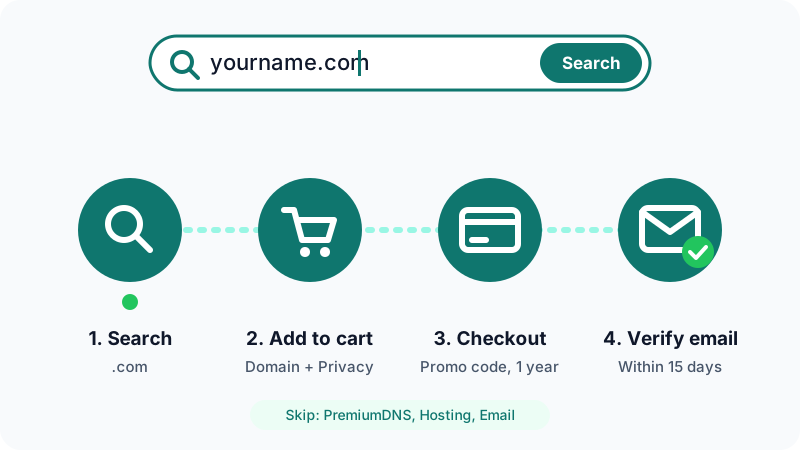
In short: search for your name, pick the .com, remove the paid extras from your cart, keep free privacy and auto-renew on, pay, then verify your email within 15 days.
Before you start: how to pick a good name
A good name saves you trouble later. Before you search, make sure your name is:
- Short and easy to type: ideally 5 to 10 characters, with no numbers or hyphens. If you have to spell it out loud twice, it is too complicated.
- Distinctive: a unique name makes it easier for Google and AI answer engines to recognise your site as its own brand. Generic keyword names blend into everything else.
- A
.com: it is the extension people trust most, and it is usually one of the cheaper ones to renew. - Free on social media: check the name on X, YouTube and Instagram before you buy, so your brand can be the same everywhere.
The domain name itself doesn't do much for your Google ranking. Good content does. So choose a name that is easy and memorable instead of stuffing keywords into it.
Step 1: Search for your domain
- Go to Namecheap.
- Type the name you want into the search box.
- You'll see a list of available extensions with their prices, such as
.com,.ioand.org.
If your first choice is taken, try a small variation of the name (a short prefix or a different word order) rather than settling for an unusual extension. People tend to type .com by habit, so an odd extension can send visitors to someone else's site.
Step 2: Choose the extension and add it to your cart
Click Add to cart next to the .com result. You don't need to register the other extensions like .io or .ai as well. They cost more and add nothing for most websites.
Keep an eye out for a promo code shown next to the price. Namecheap often runs offers on the first year, so copy the code if you see one and use it at checkout.
Step 3: Review the cart and remove what you don't need
This is the most important step, because the cart sometimes adds extra services for you:
| Service | Do you need it? |
|---|---|
| Domain Registration | ✅ Yes, this is the domain itself |
| Domain Privacy | ✅ Yes, and it's free |
| Auto-Renew | ✅ Yes, so you don't lose the domain |
| PremiumDNS | ❌ No, the free DNS is enough |
| Web Hosting | ❌ No, you can host for free elsewhere |
| Professional Email | ❌ Not for now |
If you see a hosting plan added as a free trial, remove it from the cart with the ✕ button. Otherwise it can turn into a paid subscription later, which is an easy charge to miss.
Step 4: Enter the promo code and pay
- Paste the promo code into the Promo Code field.
- Check that the registration period is one year. Longer periods lock in more money up front, and you can always renew later.
- Make sure the total is just the domain price plus the small ICANN fee.
- On the renewal settings page, keep auto-renew on for the domain and for privacy, and turn off anything you didn't ask for.
- Complete the payment.
Before you click pay, it is worth scrolling through the order summary one last time. If the total looks higher than the domain price you saw in the search results, something extra is still in the cart.
Step 5: Verify your email
After you buy the domain, you'll get an email asking you to confirm the owner's contact details. Click the verification link within 15 days. This is an ICANN requirement, and if you skip it the domain stops working until you verify.
Can't find the email? Check your spam or junk folder. It is also a good idea to use an email address you check regularly, because renewal reminders and security notices will go there too.
What to do after you buy the domain
A domain on its own doesn't show anything. The next step is to point it at a website:
- If you already have a site, connect the domain to your host through the DNS settings.
- If you're using Cloudflare, you can change the Nameservers in Namecheap to Cloudflare's nameservers and manage everything from there. We cover this in detail in how to connect your domain to Cloudflare Pages.
No website yet? Start with our guide to building your own website from scratch, and look at the best free website hosting options before you pay for any hosting.
Common mistakes to avoid
- Buying every extension: registering
.net,.organd.iofor the same name is a cost a new website doesn't need. - Turning off auto-renew: if the domain expires, someone else may register it.
- Ignoring the renewal price: the second-year price is usually higher than the promotional first-year price, so budget for it.
- Forgetting to verify your email: the domain stops working after 15 days.
Frequently asked questions
How much does a domain cost on Namecheap?
A .com domain usually costs somewhere between 10 and 15 US dollars a year, and the first year is often discounted. Keep in mind that the renewal price is usually higher than the first-year price.
Do I need Namecheap hosting for my website to work?
No. A domain and hosting are two separate services. You can register the domain on Namecheap and host your site for free on services such as Cloudflare Pages or GitHub Pages.
Is Domain Privacy free?
Yes. Namecheap includes free privacy protection with supported domains. It hides your name, address and email from public WHOIS records.
What happens if I don't verify my email after registering?
ICANN, the organisation that oversees domain names, requires the domain owner's email to be verified within 15 days. If you don't verify it, the domain stops working until you do.
Can I move my domain to another registrar later?
Yes. Once 60 days have passed since registration, you can transfer the domain to any other registrar. You need to unlock the domain and get its transfer code (EPP code) first.
Related tutorials
Websites & hosting
How to Build Your Own Website from Scratch with No Experience
A beginner's step-by-step guide to building your first website with HTML and CSS, testing it on your computer, and publishing it online for free.
· 5 min read
Websites & hosting
How to Connect Your Domain to Cloudflare Pages (Step by Step)
Connect a Namecheap domain to a Cloudflare Pages site: add the site to Cloudflare, switch nameservers, attach the custom domain and redirect www.
· 6 min read
Websites & hosting
Docker for Beginners: What It Is and How to Use It Step by Step
A beginner-friendly Docker guide: what images and containers are, how to install Docker, the key commands, and how to build your first image.
· 6 min read